edges, sharpening, hybrid images and multiresolution blending · fall 2026
01
convolution from scratch
What is a convolution? A convolution slides a small kernel over an image and replaces every pixel with a weighted sum of its neighbors, with each weight corresponding to the value in the kernel cell. Now it is only a convolution when we flip the kernel (rotate it by 180°), otherwise it’s called a correlation: (f ∗ k)[i, j] = Σu, v k[u, v] · f[i − u, j − v]. To make the output the same dimensions as the input image, we also zero-pad the image beforehand, so that the kernel has “extra space” to operate on for boundary pixels.
def conv_four_loops(im, k):
k = k[::-1, ::-1]
p = np.pad(im, ((k.shape[0] // 2,), (k.shape[1] // 2,)))
out = np.zeros(im.shape)
for i in range(im.shape[0]):
for j in range(im.shape[1]):
for u in range(k.shape[0]):
for v in range(k.shape[1]):
out[i, j] += p[i + u, j + v] * k[u, v]
return out
def conv_two_loops(im, k):
k = k[::-1, ::-1]
kh, kw = k.shape
p = np.pad(im, ((k.shape[0] // 2,), (k.shape[1] // 2,)))
out = np.zeros(im.shape)
for i in range(im.shape[0]):
for j in range(im.shape[1]):
out[i, j] = np.sum(p[i:i + kh, j:j + kw] * k)
return out
There are two versions of writing out the convolution operation. One is a quadruple for-loop where we iterate over the pixels of the image (two for-loops) and the cells of the kernel (two for-loops). Otherwise, we can also replace the two for-loops over the kernel with NumPy operations, leaving a double for-loop over the pixels.
convolving a selfie
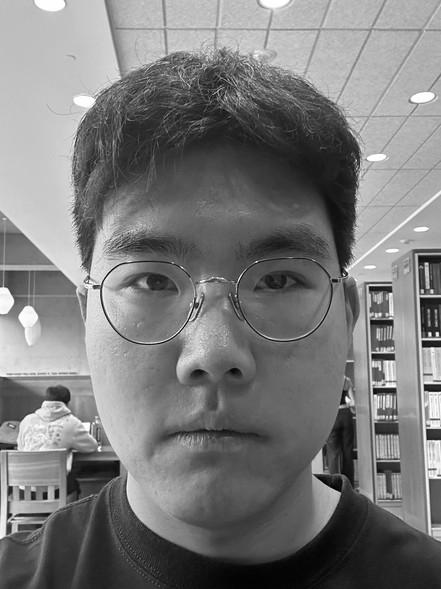
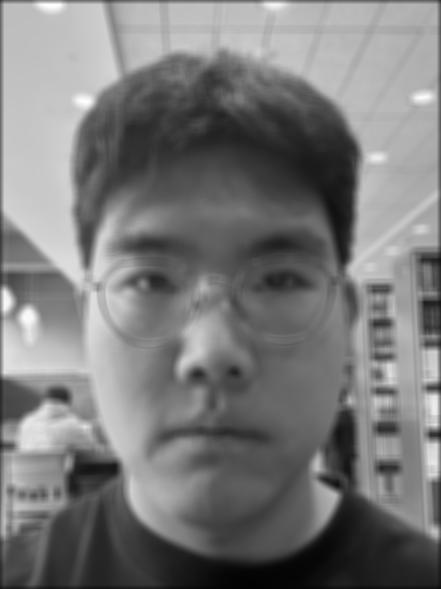
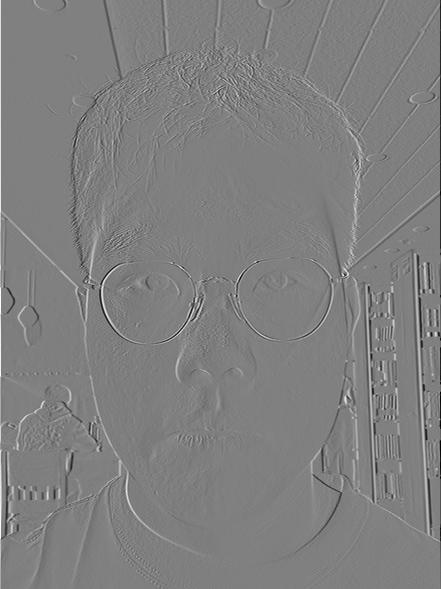
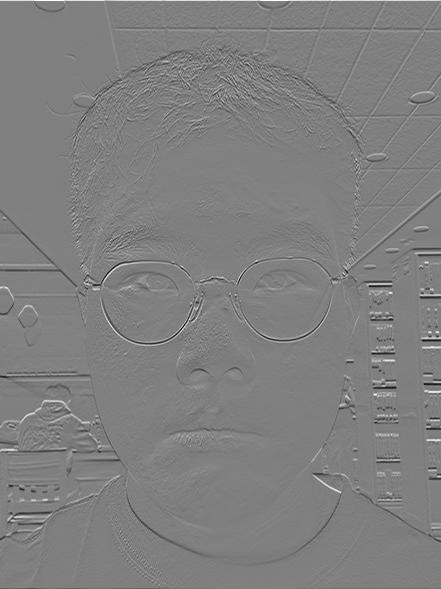
The selfie is read as grayscale (441 × 589) and convolved with a 9 × 9 box filter and with the finite difference operators Dx and Dy. In the derivative images, mid-gray means zero, white means the brightness increases (from left to right for Dx, from top to bottom for Dy) and black means the brightness decreases.
selfie · grayscale9 × 9 box filterdxdy
runtime
kernel
four loops
two loops
scipy
max difference vs scipy
box, 9 × 9
3.58 s
0.28 s
0.015 s
2 × 10⁻¹⁵ (insignificant)
dx, 1 × 3
0.16 s
0.26 s
0.001 s
0
dy, 3 × 1
0.18 s
0.25 s
0.002 s
0
Yikes, quadruple for-loops are slow...
For the box filter, getting rid of the two inner for-loops makes the code about 13 times faster, and scipy is another 19 times faster than that. Scipy is the fastest because everything runs in compiled code and not the Python interpreter.
However, for the derivative kernels, the quadruple for-loop version is faster than the double for-loop because there are only three pixels to multiply, so slicing out the window and calling np.sum on it costs more than just doing the three multiplications.
boundaries
Near the edges of the image the kernel hangs over the border and picks up the zero padding. For the box filter this pulls black into the average, so the blurred selfie gets a dark rim. For Dx and Dy, the jump from the image to zero looks like a strong edge along the border. scipy’s default (boundary='fill' with a fill value of 0) does exactly the same thing, which is why the outputs match. From section 02 onwards we switch scipy to boundary='symm', which mirrors the image at the border instead, so blurring doesn’t darken the edges and derivatives don’t invent a frame around the image.
02
finite difference operator
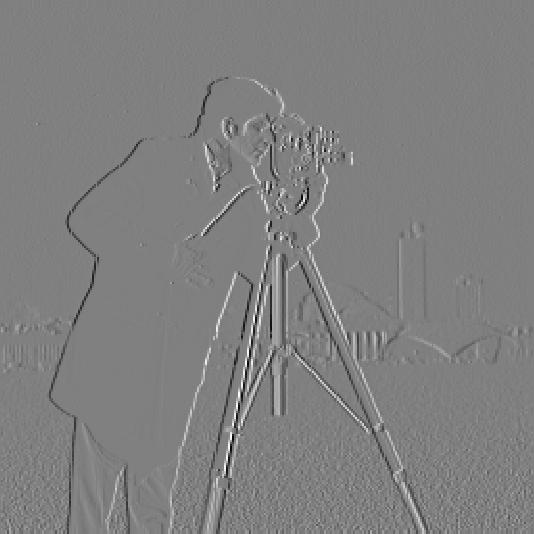
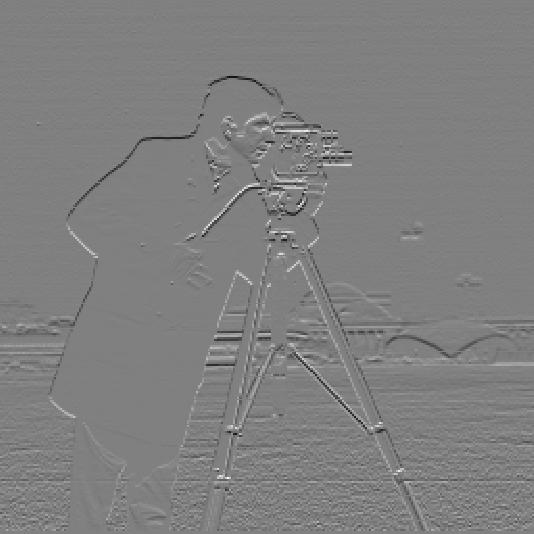
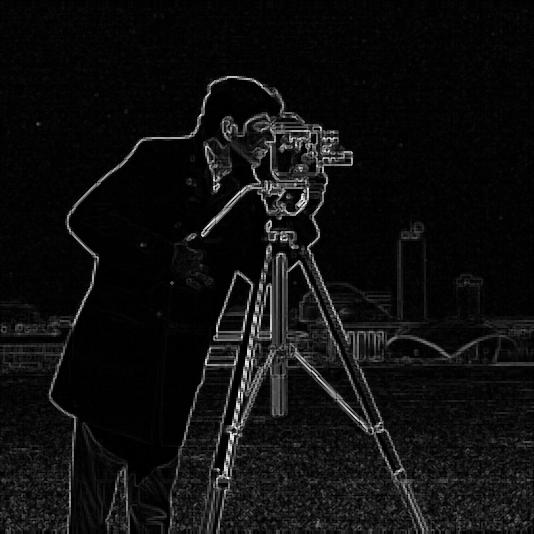
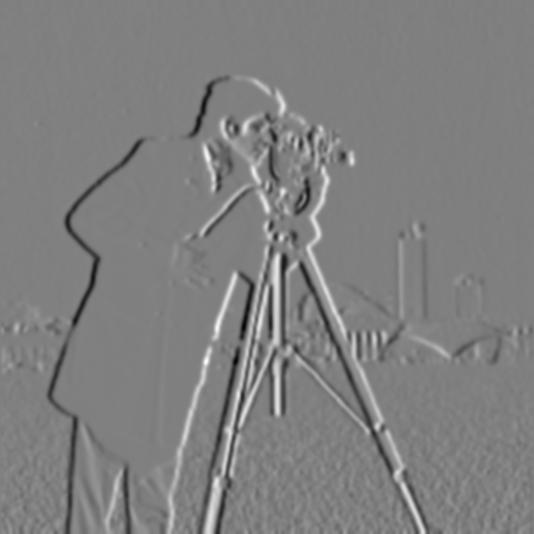
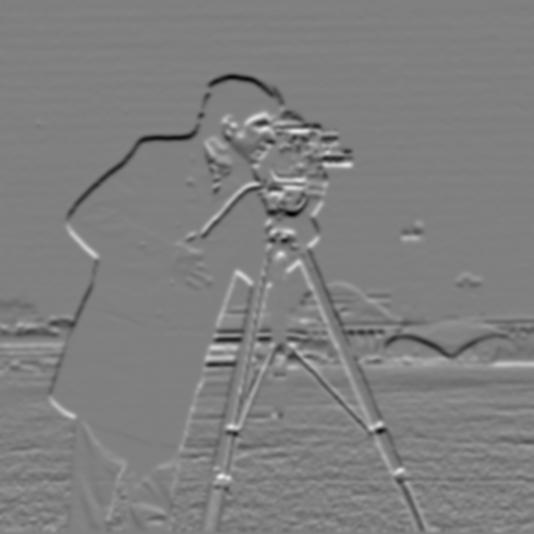
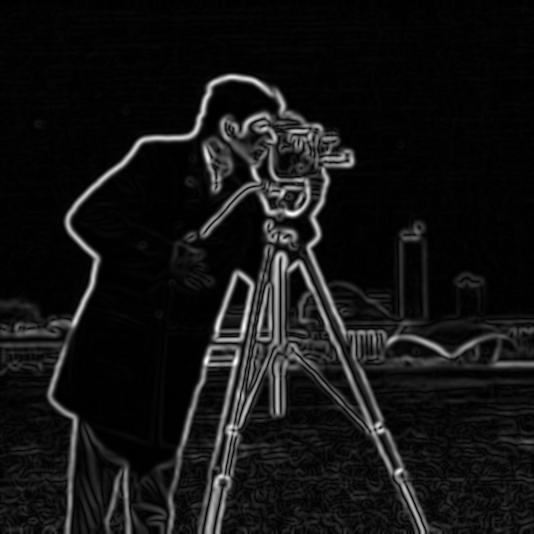
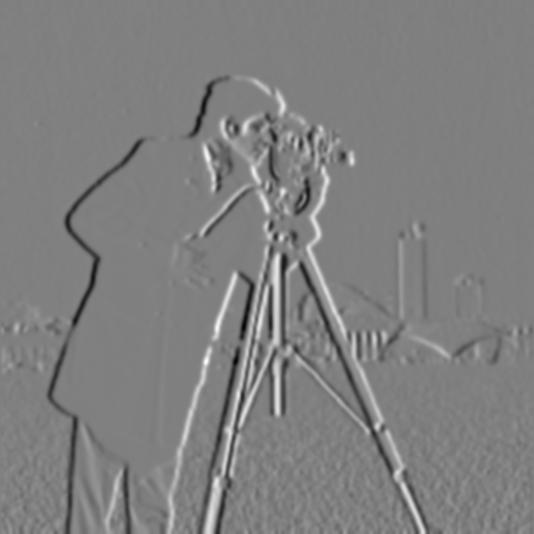
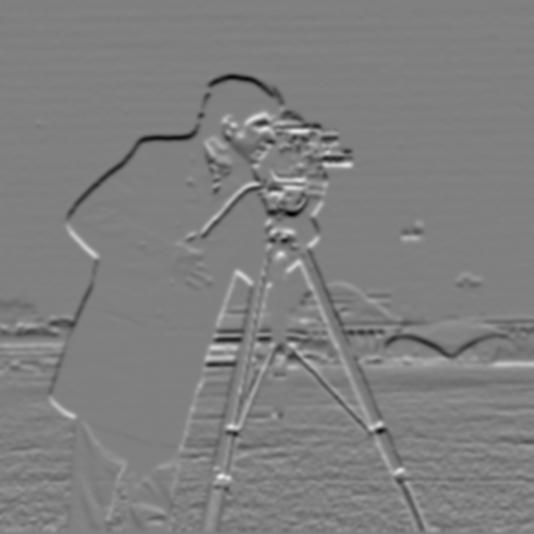
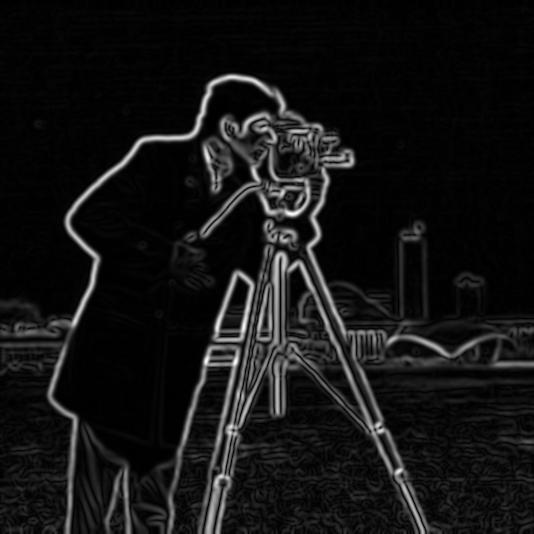
We use the central differences Dx = [1, 0, −1] and Dy = DxT. After the flip, convolving with Dx gives f(x + 1) − f(x − 1): the right neighbor minus the left one, which is twice the slope of the image at x. It is zero in flat regions and large where the brightness changes. Dx only reacts to changes from left to right (vertical edges) and Dy only to changes from top to bottom (horizontal edges). The gradient magnitude √(dx2 + dy2) combines the two into how quickly the brightness changes, whichever direction the edge runs.
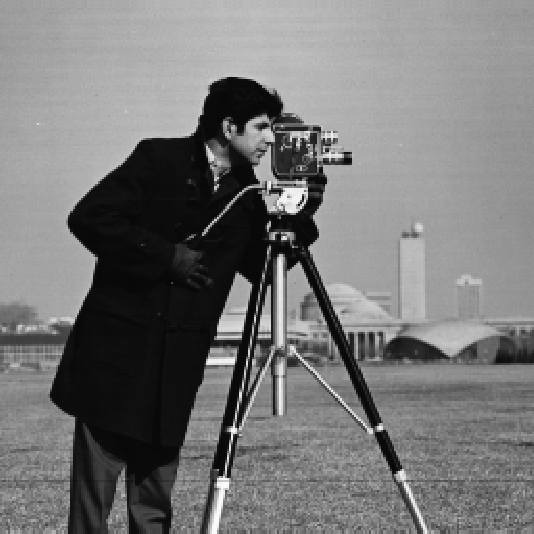
Note: we noticed that the cameraman image comes with some white borders, which creates “fake” edges, so we cropped it off.
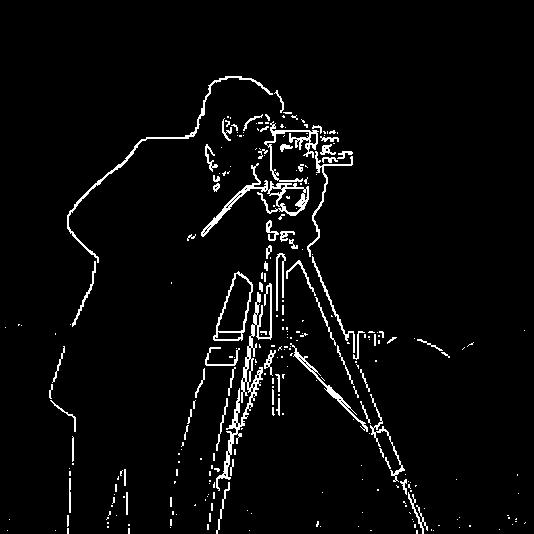
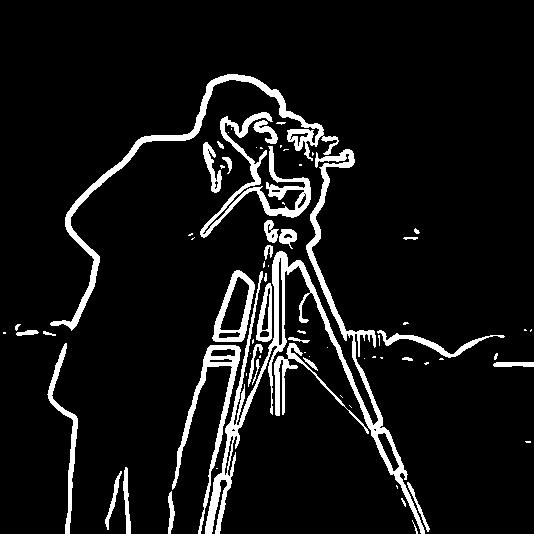
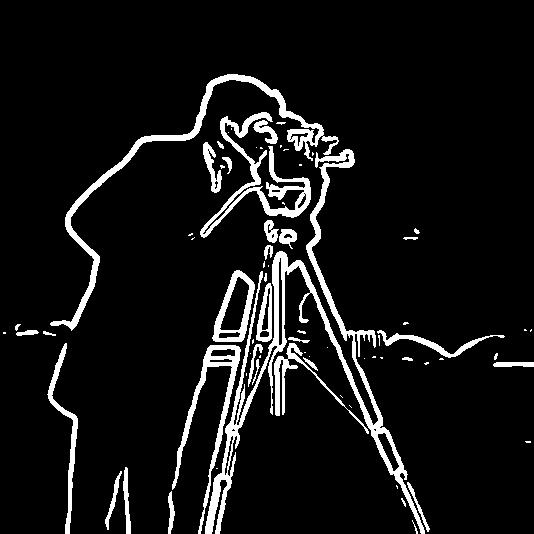
dxdygradient magnitudeedges · threshold 0.3
picking the threshold
The gradient magnitudes range from 0 to about 0.91. We tried thresholds between 0.15 and 0.5, and 0.3 gave the best results: lower thresholds let the grass through as noise, and higher ones break up the tripod legs. A few grass specks still remain at 0.3, but raising the threshold further would break the main subject, so this was a tradeoff we accepted.
03
derivative of gaussian filter
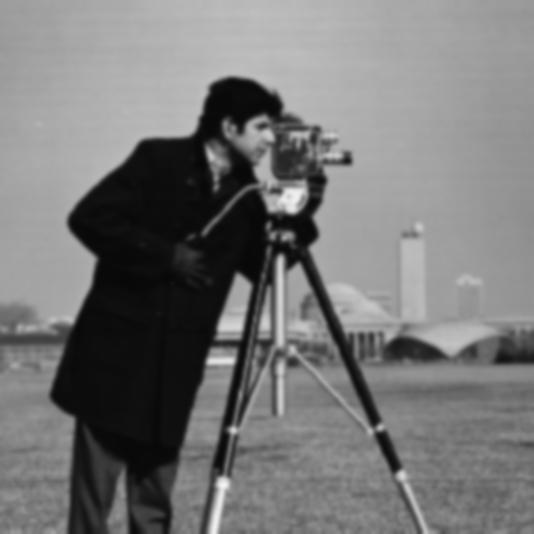
In the previous section we saw that the difference operators react to every change between neighboring pixels, including noise (e.g.: grass). This is not the best because we want smooth edges. We can blur the image first to remove such noise. We build a 2D Gaussian kernel by taking the 1D kernel from OpenCV (getGaussianKernel) and its outer product with itself, with σ = 2 (a 13 × 13 kernel). Now, finding the edges gives:
cameramanblurred · σ = 2
blur, then dxblur, then dygradient magnitudeedges · threshold 0.09
what changed
Compared to our previous results, the grass specks and other noise are almost gone. The edges are thicker and smoother. Blurring spreads every edge over several pixels, so the derivative peaks become wider and lower: the largest gradient magnitude drops from 0.91 to 0.30. Since the gradient magnitude range is reduced, we also need to reduce our threshold (we chose 0.09 as it provided nice edges). The edge image now has no speckle and the outlines are continuous. This method is not perfect, however. As edges are more spread out, the edges are thicker than before, and small details on the horizon are now mostly gone.
saving some computation
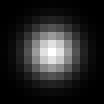
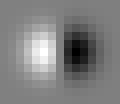
There is actually a shortcut we can take in our process: we blur and then run the derivative filters on the image. These are two convolutions. Since convolutions are associative, we can actually combine them. Blurring and then taking the difference, (f ∗ G) ∗ Dx, is the same as a single convolution with the derivative of Gaussian (DoG) filter, f ∗ (G ∗ Dx). Convolving the 13 × 13 Gaussian with the 1 × 3 difference operator gives a 13 × 15 filter: a positive lobe on one side and a negative lobe on the other.
gaussian∗dx=dog · x
gaussian∗dy=dog · y
dog · xdog · ygradient magnitudeedges · threshold 0.09
The results are identical. The largest absolute difference is around 1 × 10⁻¹⁵, which can be attributed to floating point rounding error. Apart from this, the results are pixel-identical.
04
image “sharpening”
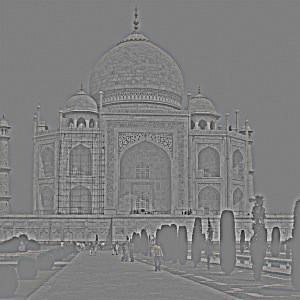
A Gaussian blur keeps the low frequencies of an image. Subtracting the blurred image from the original leaves the high frequencies: the edges and the fine texture. Unsharp masking adds a multiple α of those back to "sharpen" the image:
sharp = f + α · (f − f ∗ G)
= (1 + α) · f − α · f ∗ G
= f ∗ ((1 + α) · δ − α · G)
The last step writes f as f ∗ δ, where δ is the unit impulse, a kernel with a single 1 in the center that leaves any image unchanged. The kernel has a large positive center and a ring of small negative weights around it. Its weights still add up to 1, so flat regions come out unchanged, while any pixel that differs from its neighborhood gets pushed even further away from it.
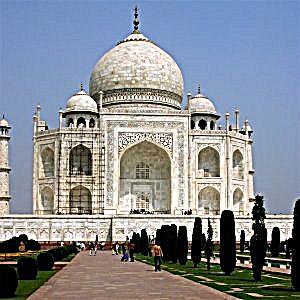
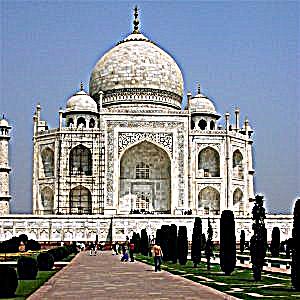
taj mahal
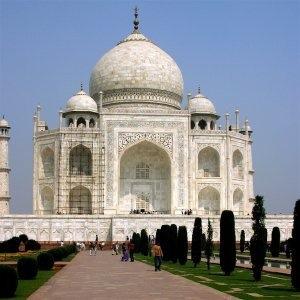
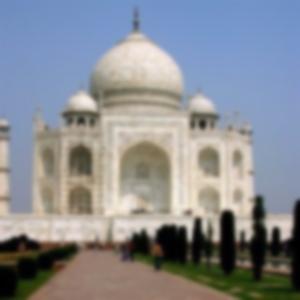
originalblurred · σ = 2high frequencies · original − blurred
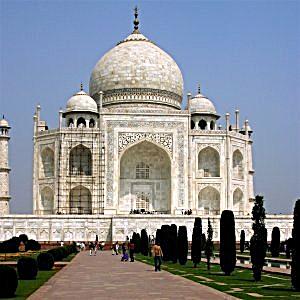
α = 1 sharpens the image slightly, and at α = 2 the carvings on the walls and the tops of the minarets become crisp. At α = 4 the image is clearly over-sharpened: bright and dark halos appear along the dome and around the trees, because the filter overshoots on both sides of every strong edge.
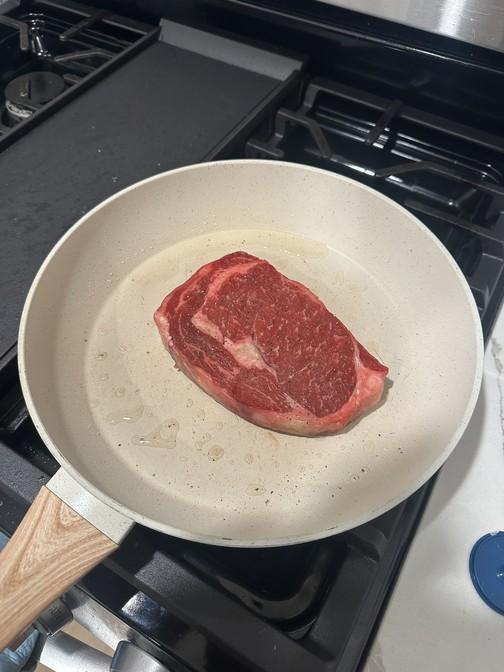
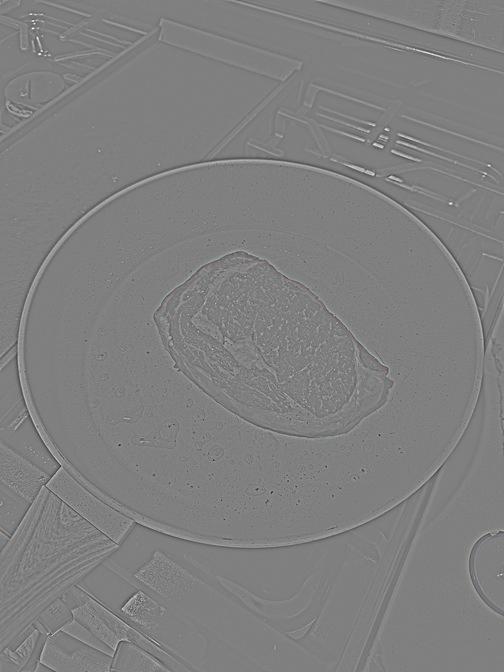
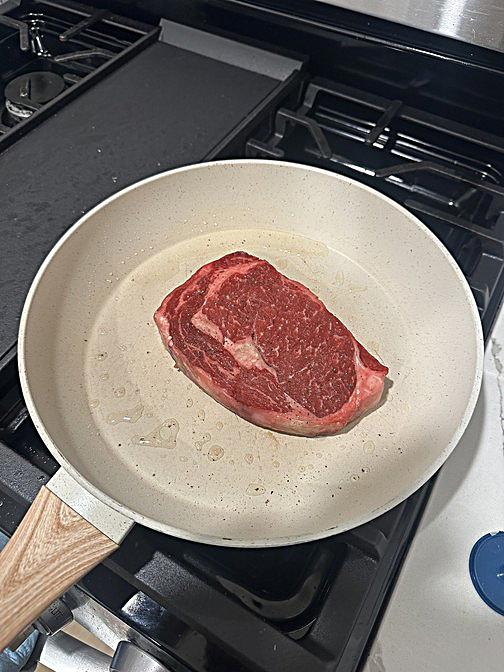
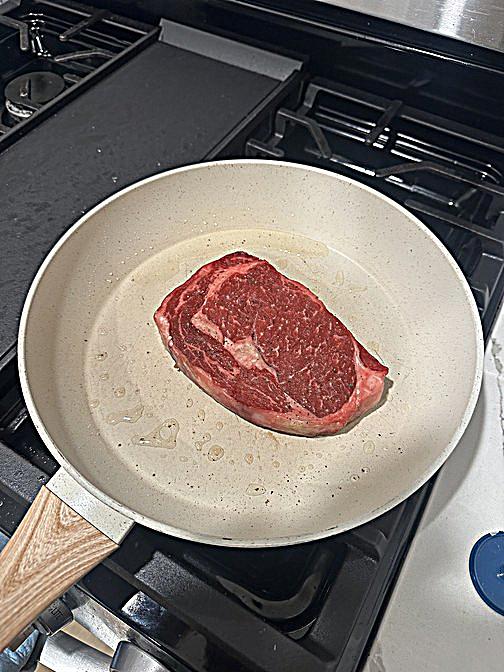
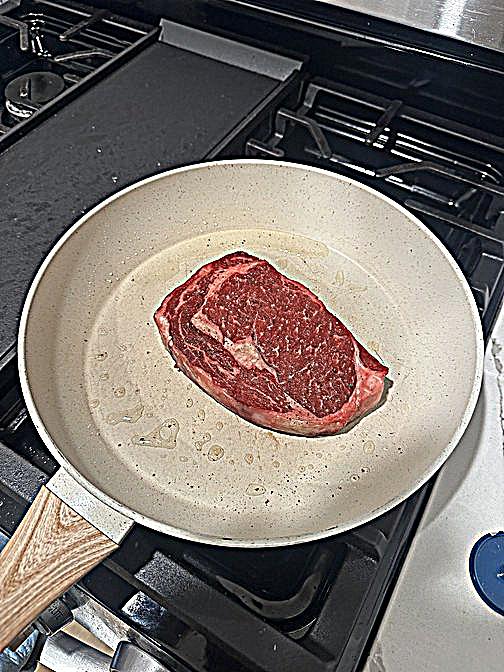
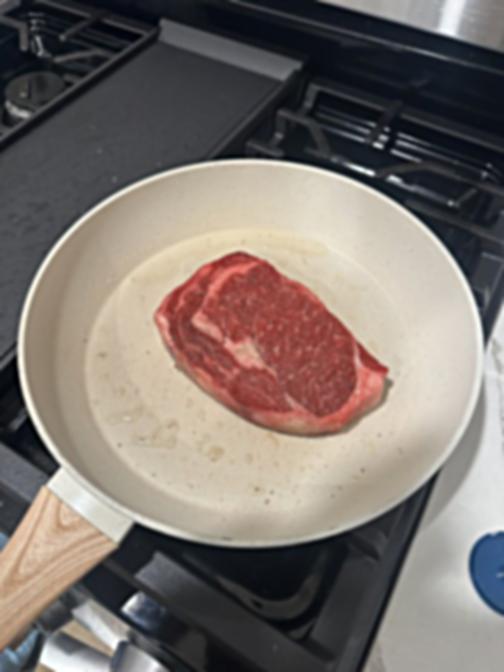
The marbling in the meat and the droplets of oil in the pan become more noticeable and defined as α grows. At α = 4, the steak and the handle of the pan get extremely sharp. We can also see that the dust on the flat grill becomes much more noticeable. This is unavoidable since the filter amplifies dust and noise as much as it amplifies the detail we want.
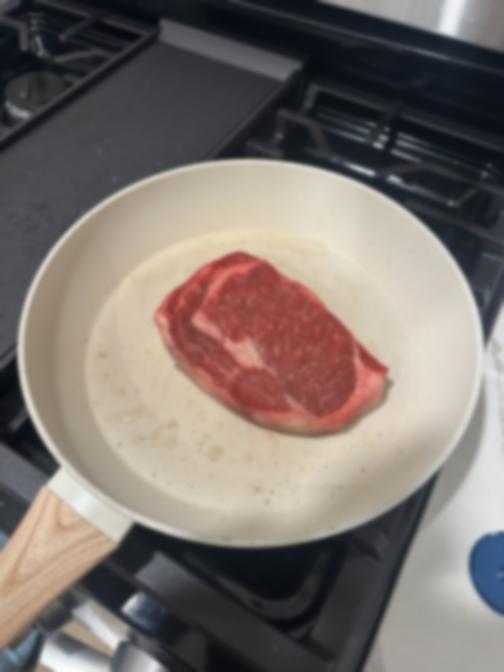
To evaluate the filter, we took the steak photo, which was already sharp, blurred it with the same Gaussian (α = 2), and then sharpened the blurred copy. The outline of the steak and the rim of the pan come back crisp, and at a glance the result looks close to the original. Up close, though, the fine marbling and the small droplets in the oil aren’t reconstructed. The blur threw those frequencies away, and sharpening can only amplify what is still there. So unsharp masking brings back the look of sharp edges, but it cannot recover detail that was lost.
05
hybrid images
A hybrid image is the low frequencies of one image added to the high frequencies of another. Up close, the high frequencies dominate what we see. From far away (or on a small screen) they are too fine to make out, and only the low frequencies are left. We low-pass one image with a Gaussian of standard deviation σlow, high-pass the other by subtracting its Gaussian blur with σhigh (the impulse minus a Gaussian), and add the two.
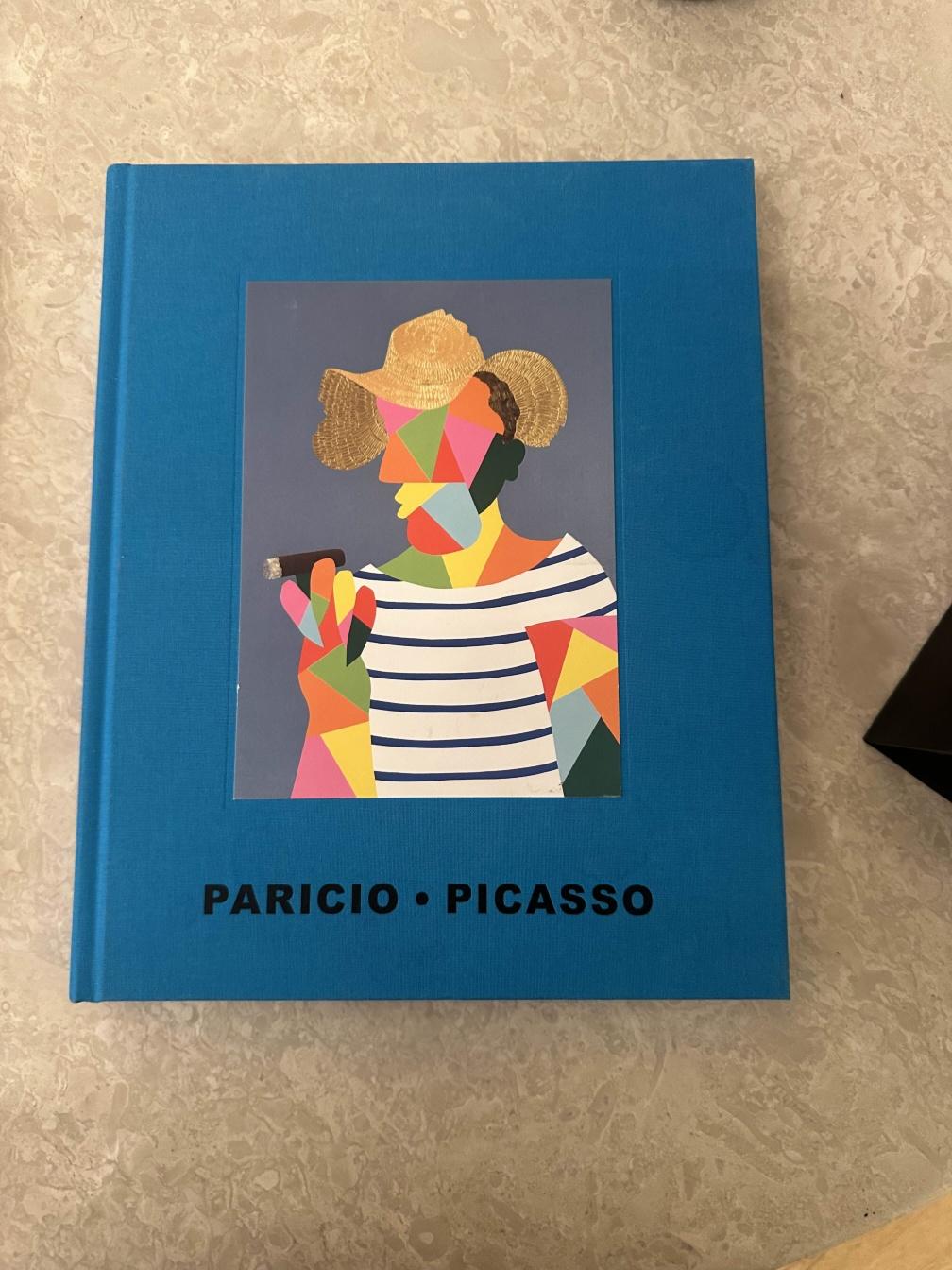
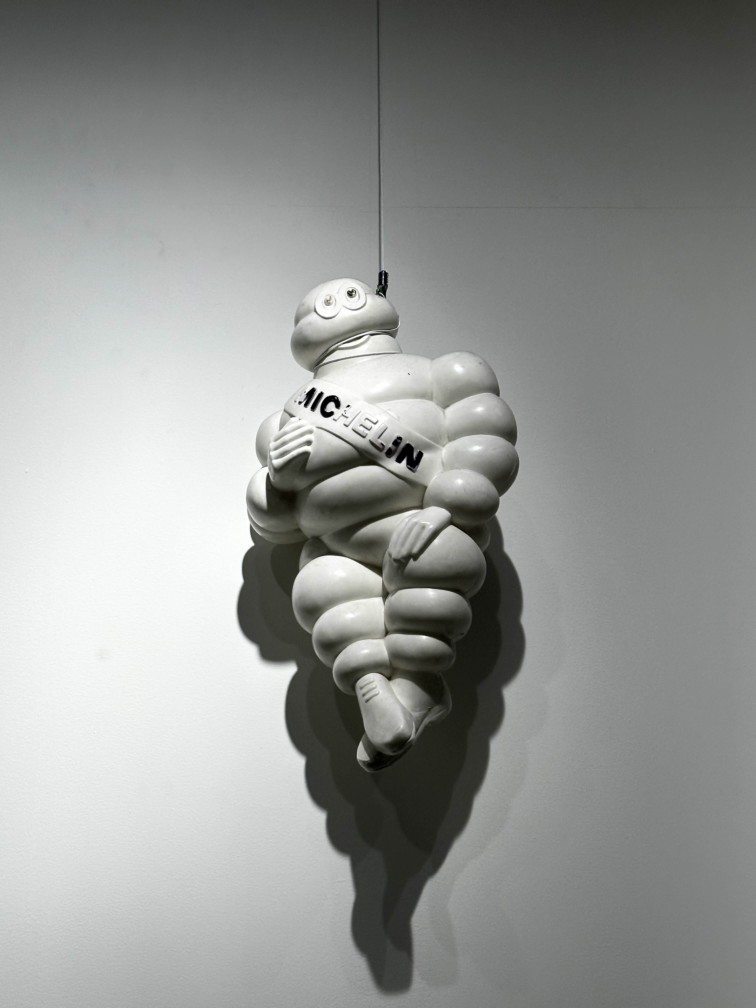
favorite: a picasso cover and the michelin man
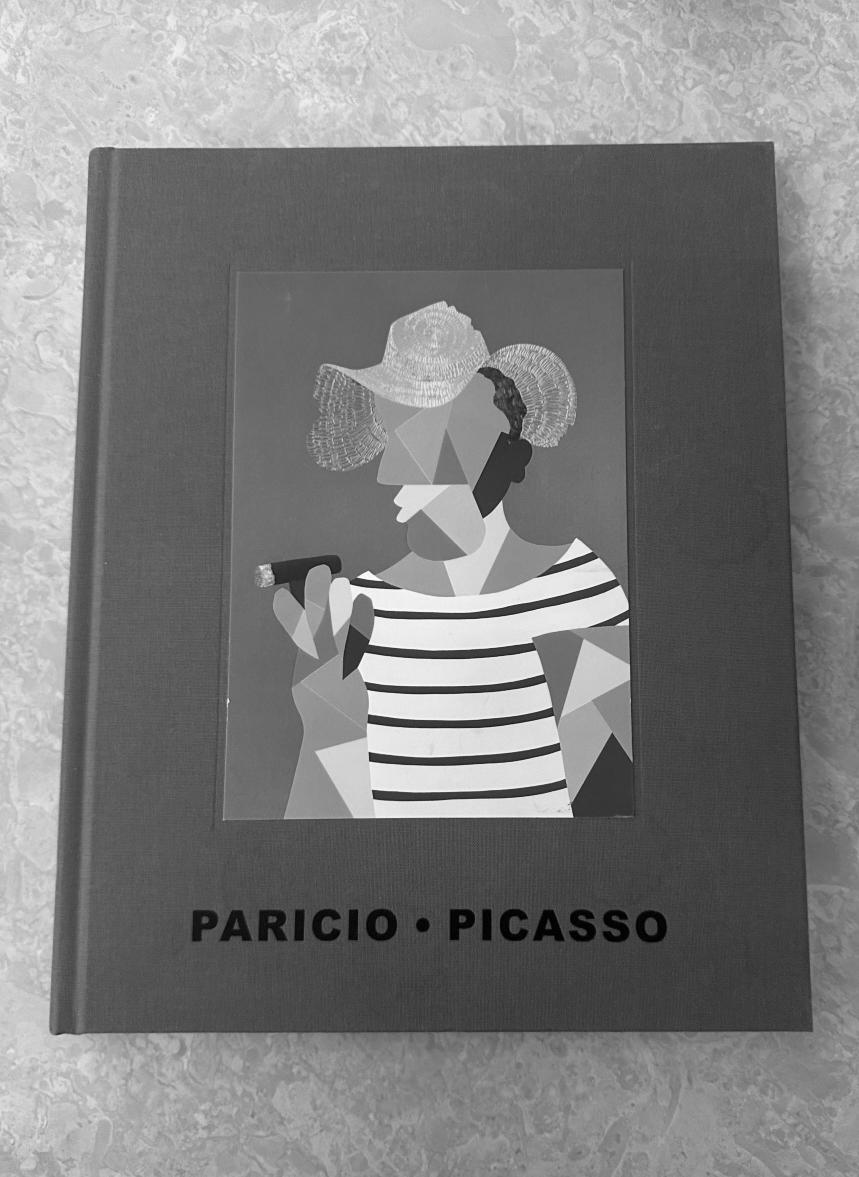
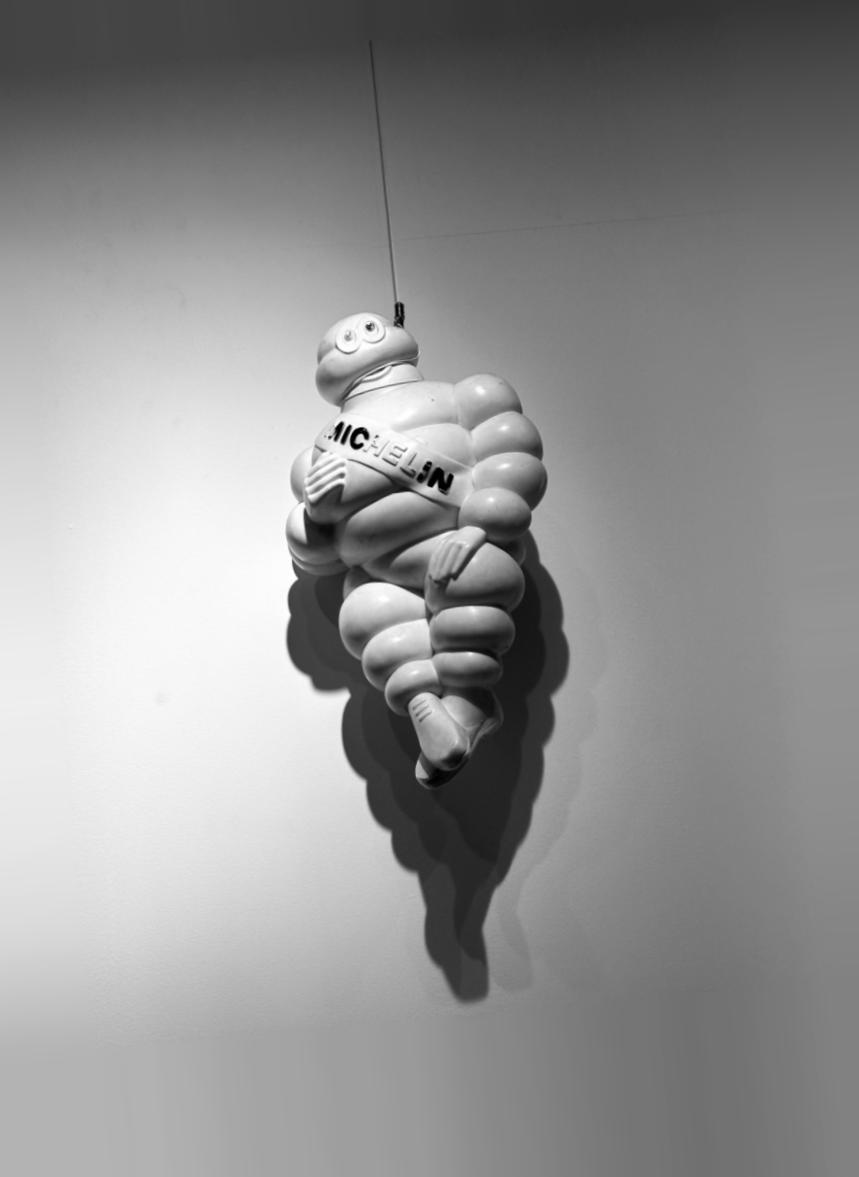
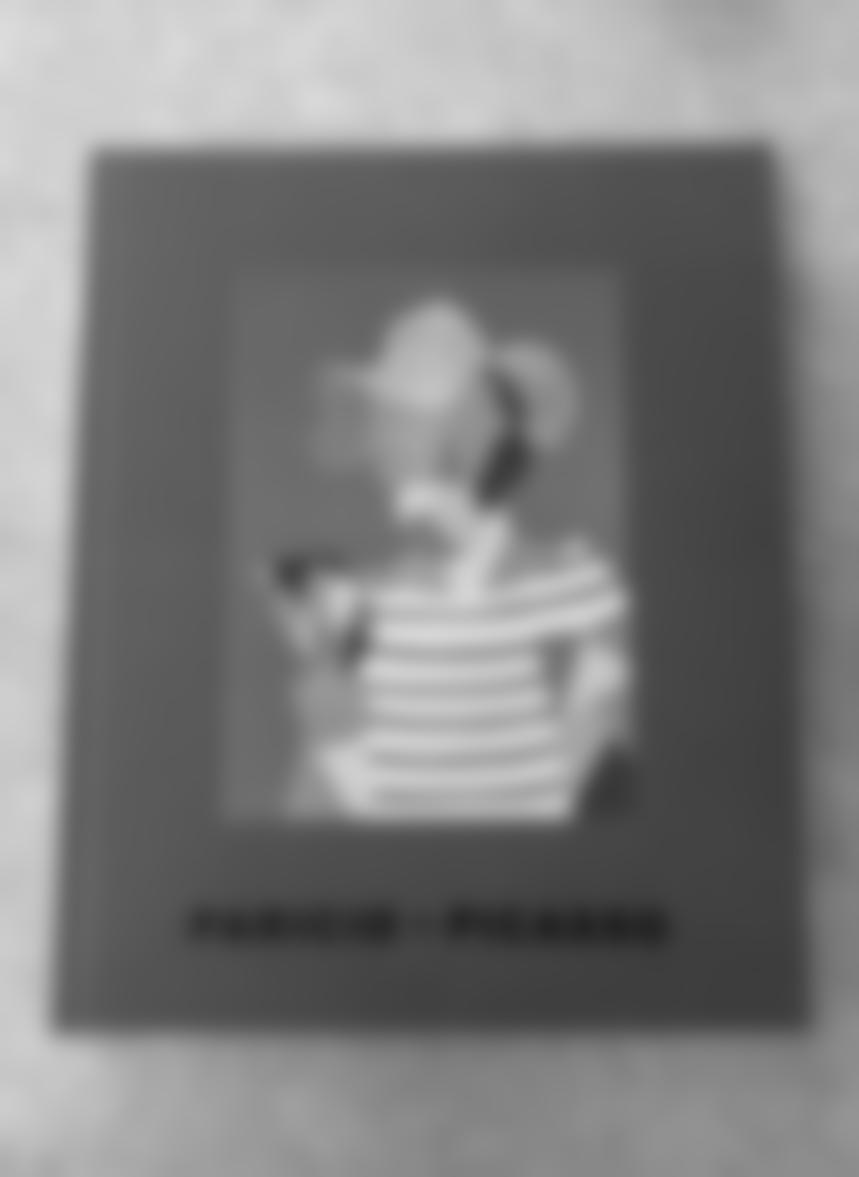
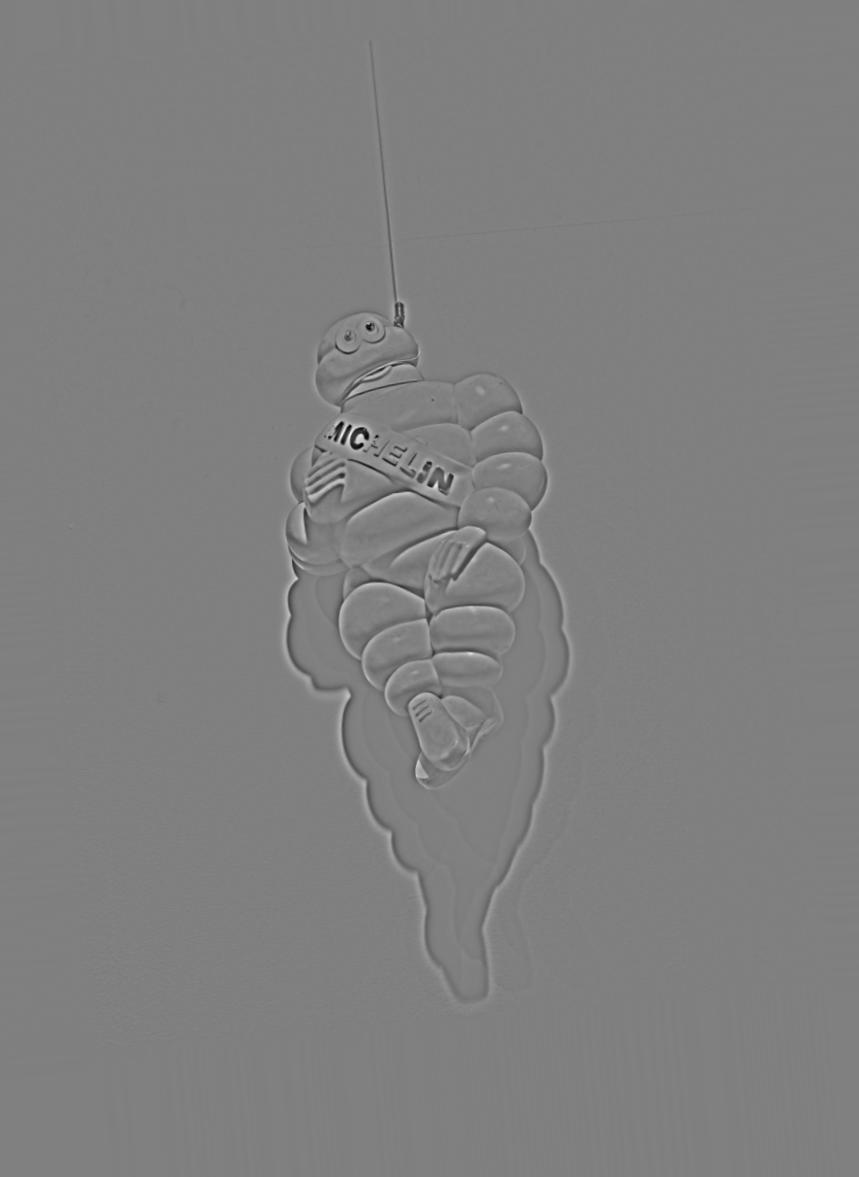
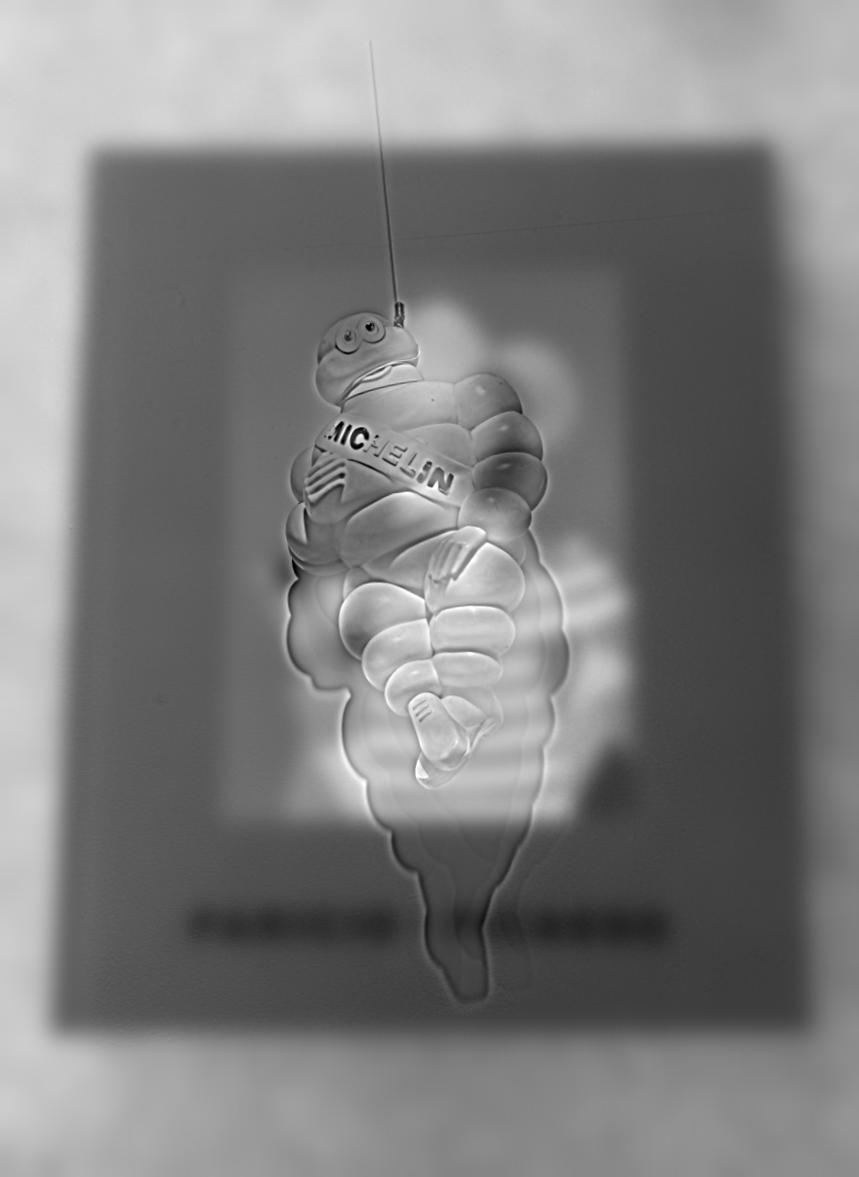
The low-frequency image is a photo of a book with a Picasso-style portrait on its cover; the high-frequency one is a Michelin Man figure hanging on a wall. We aligned his head with the face on the cover and his feet with the bottom of the painting, so the whole figure fits inside the portrait. After scaling, the Michelin photo is smaller than the book photo, so we extended its plain wall outwards (with blurred edge padding) to be able to show the whole book on the table. This is ok because the Michelin Man’s backdrop is essentially a plain wall with some shadows.
original · low frequenciesoriginal · high frequencies
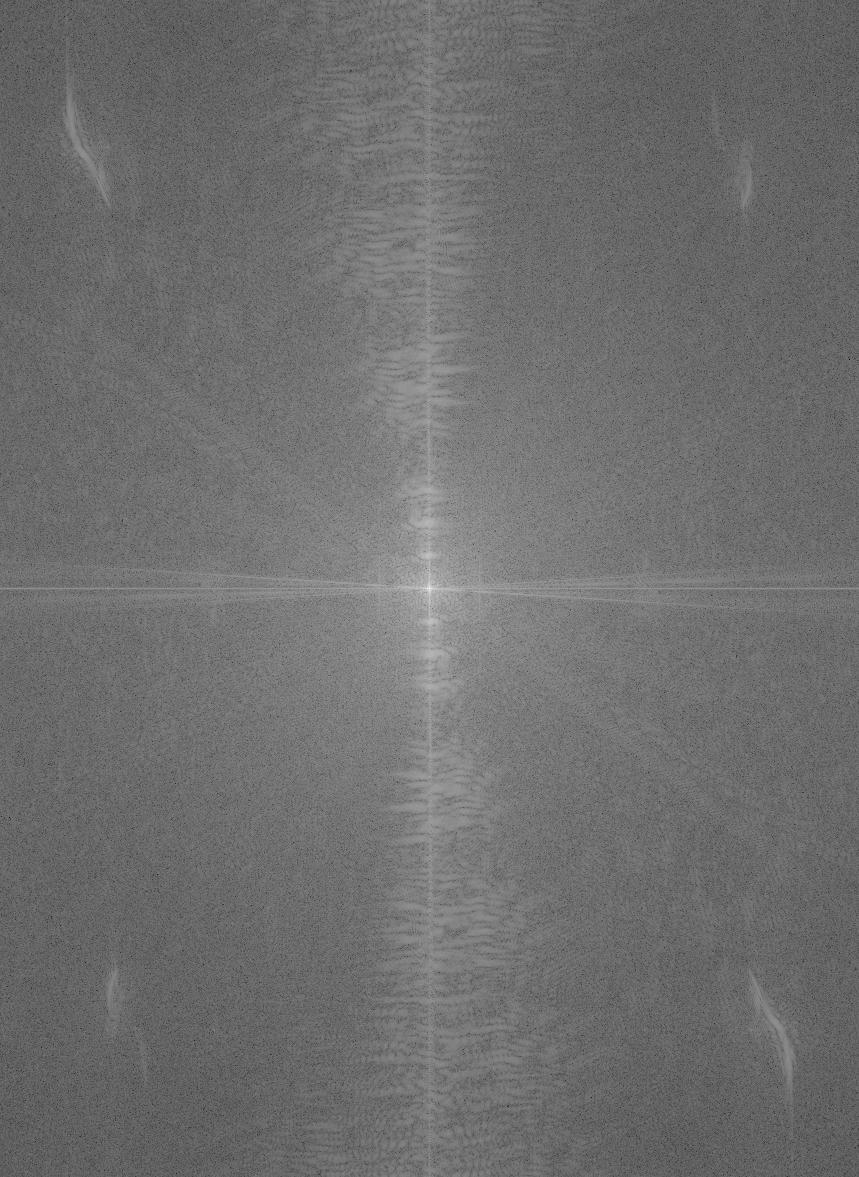
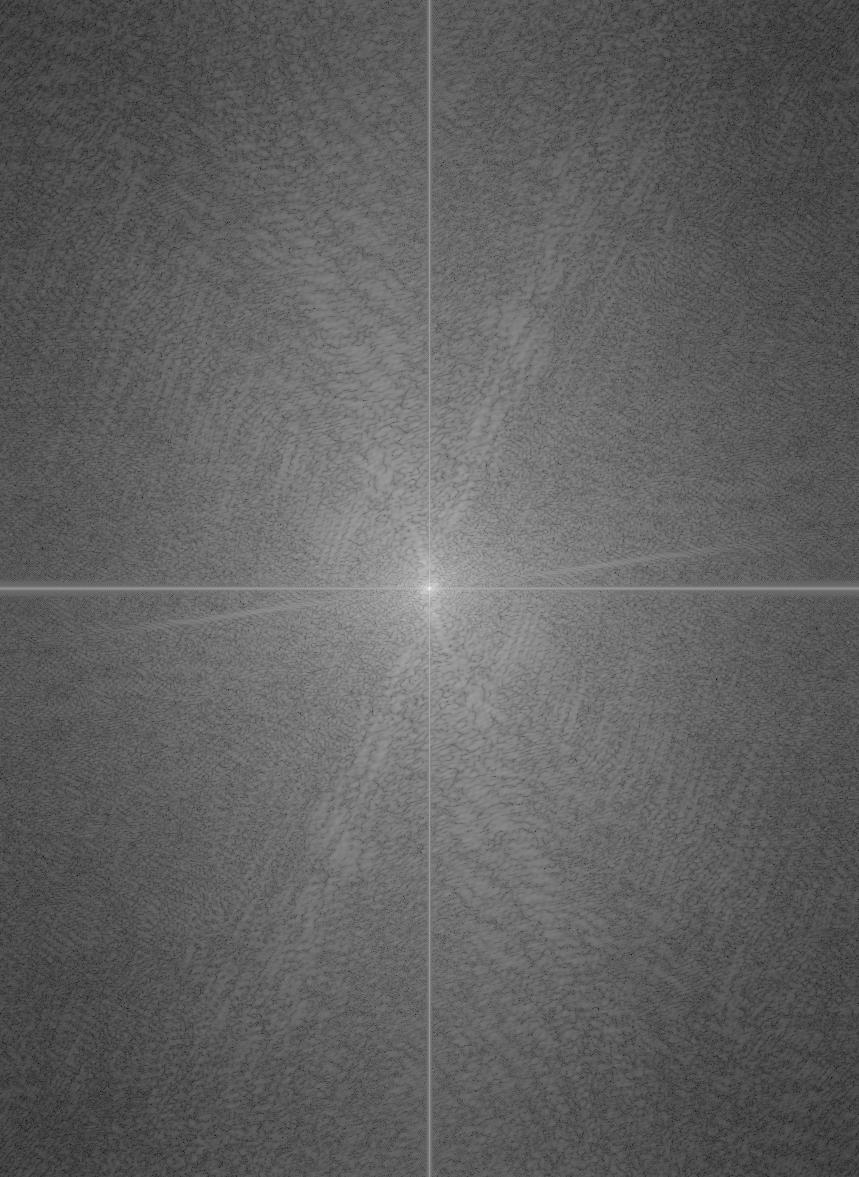
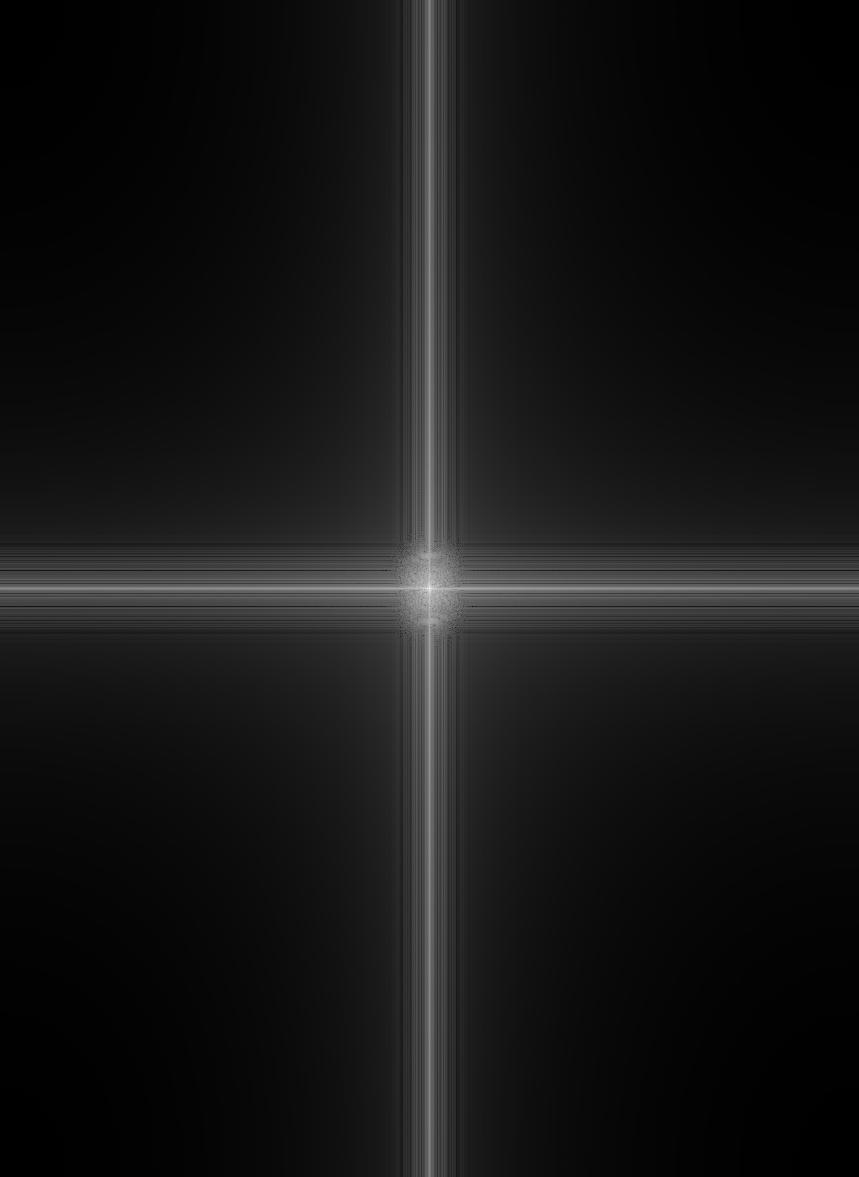
book · alignedbook · fftmichelin · alignedmichelin · fft
book · low pass · σ = 11book · low pass · fftmichelin · high pass · σ = 4michelin · high pass · fft
hybrid · up close
the same hybrid, small
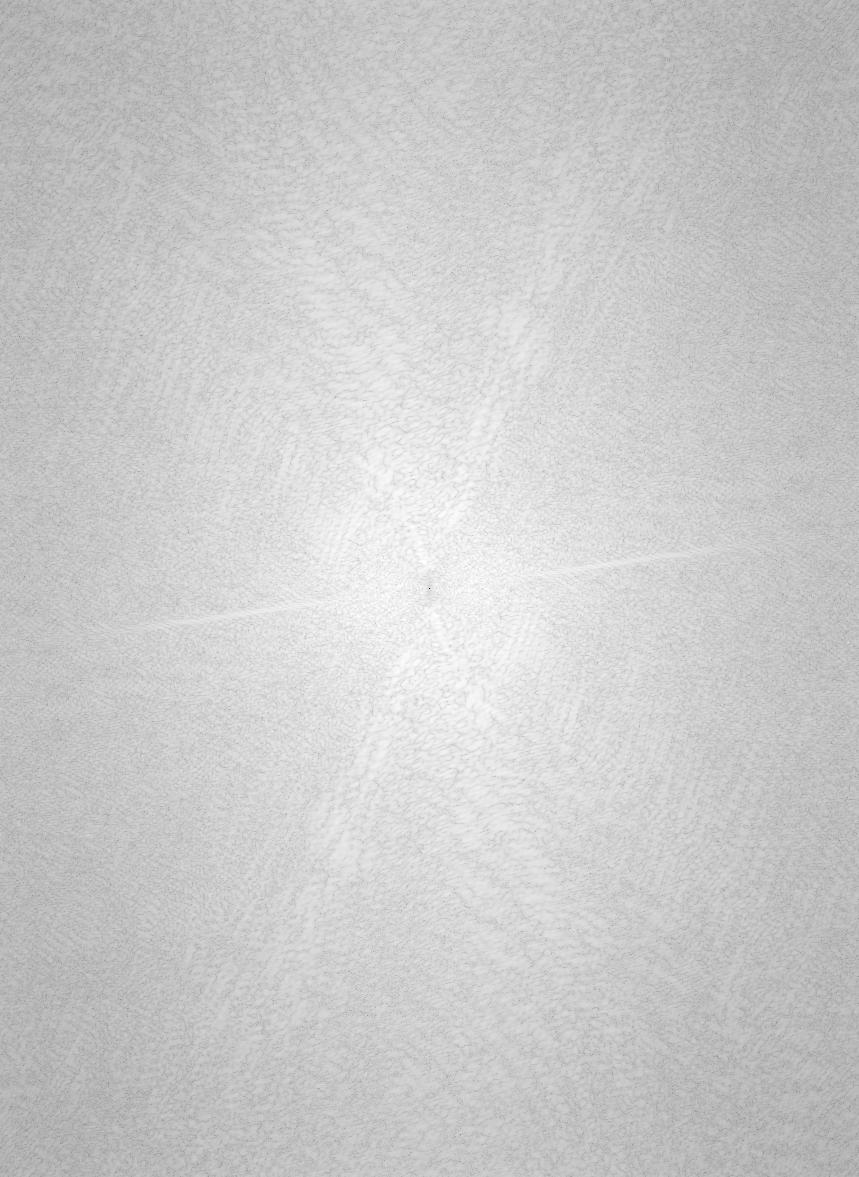
hybrid · fft
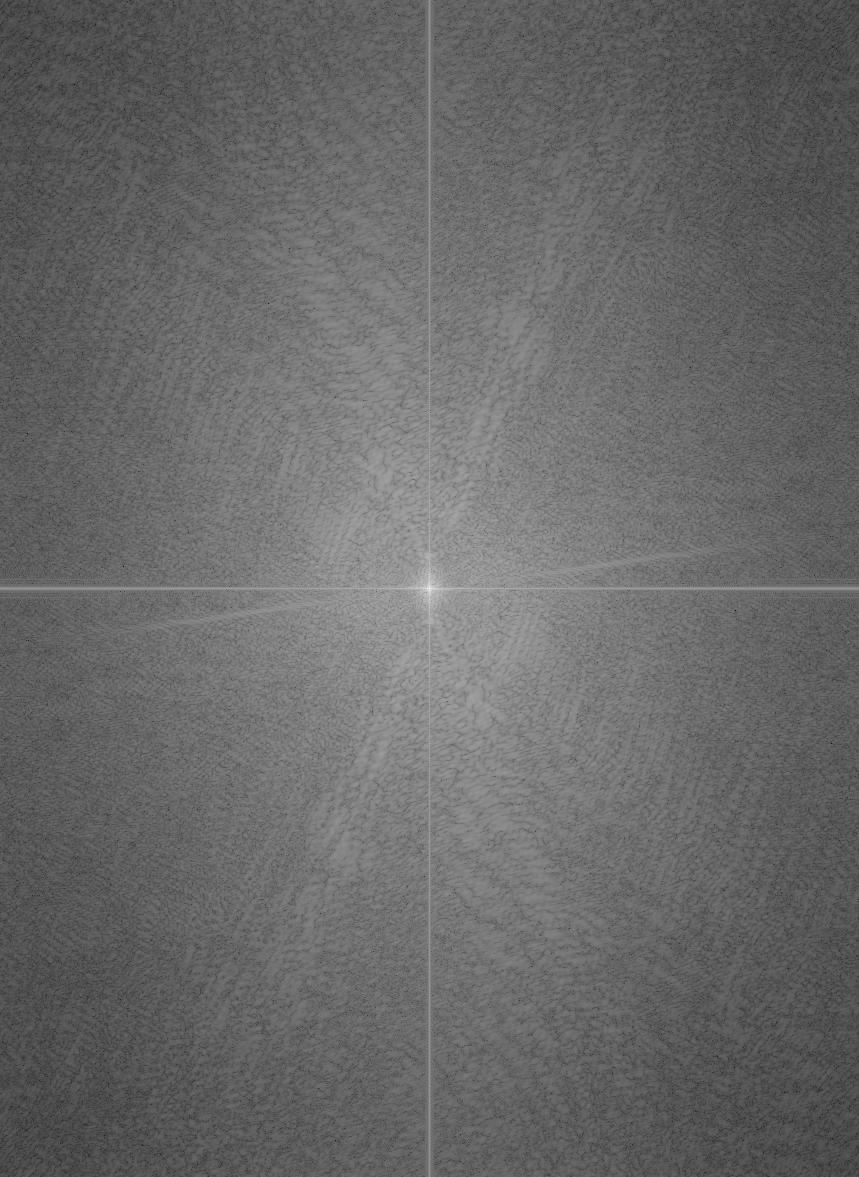
In the spectra, the low-passed book only keeps the bright center (and the cross that every image gets from its borders), while the high-passed Michelin Man loses the bright peak in the center but keeps its energy out to the highest frequencies. The spectrum of the hybrid is the book’s in the middle and the Michelin Man’s everywhere else.
choosing the cutoffs
We picked σlow = 11 and σhigh = 4 by trying a range of values and looking at each result both at full size and shrunk down. A Gaussian’s frequency response falls to half at about 0.19 / σ cycles per pixel, so the low pass keeps the book below about 0.017 cycles per pixel, and the high pass keeps the Michelin Man above about 0.047 cycles per pixel.
derek and nutmeg
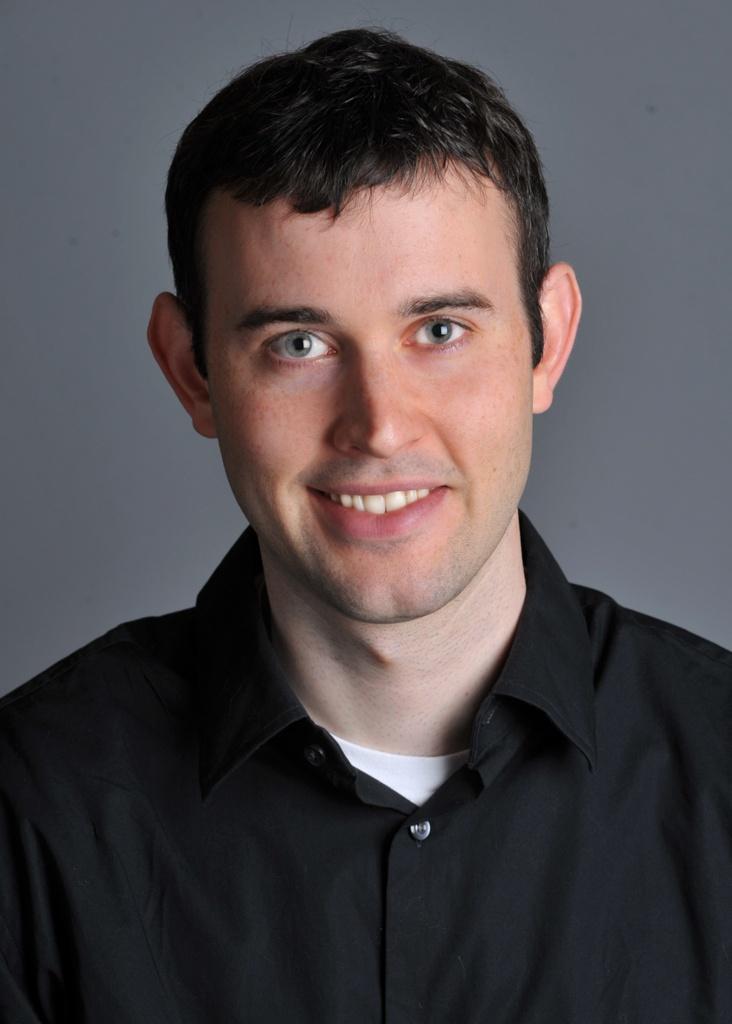
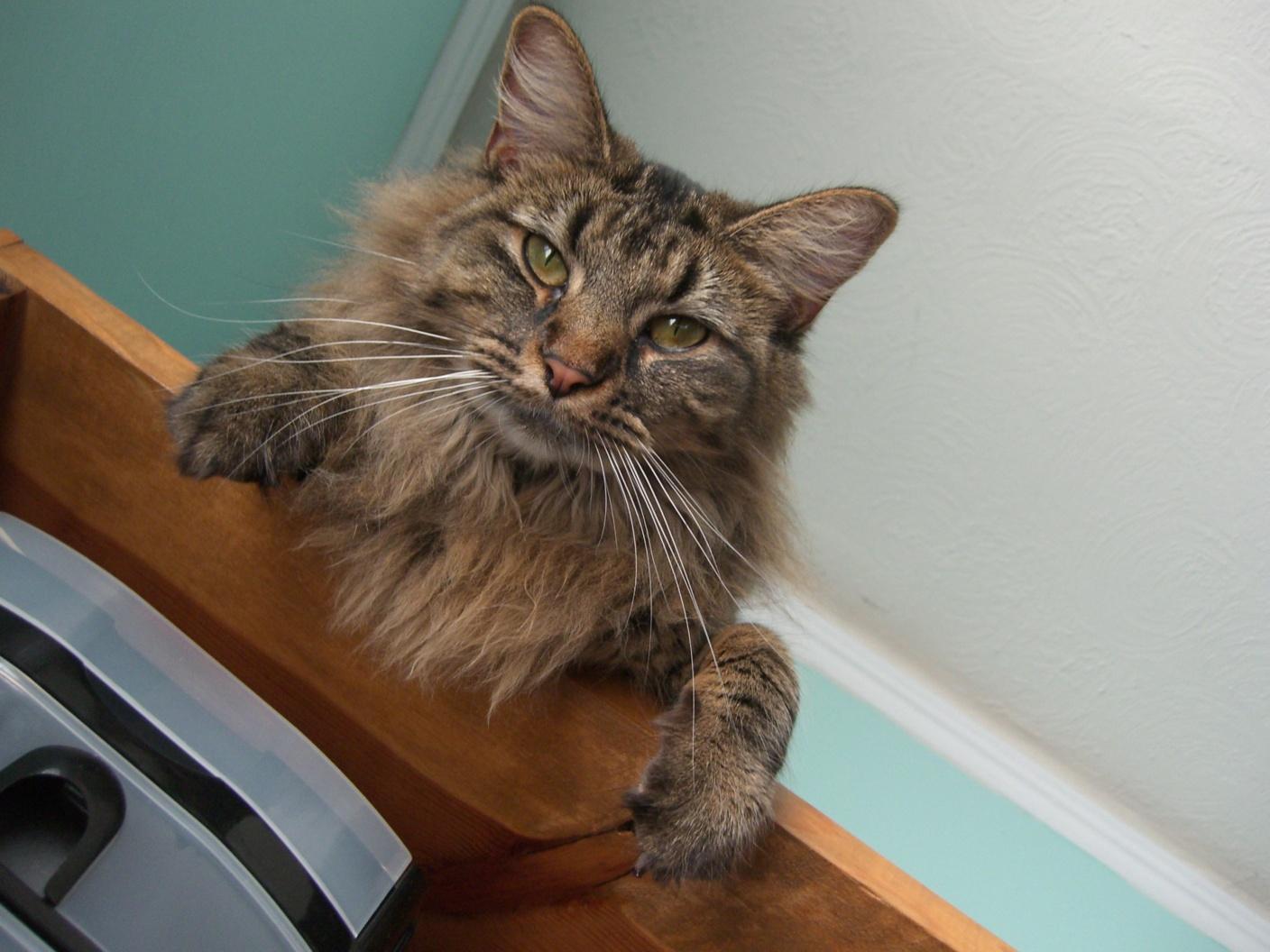
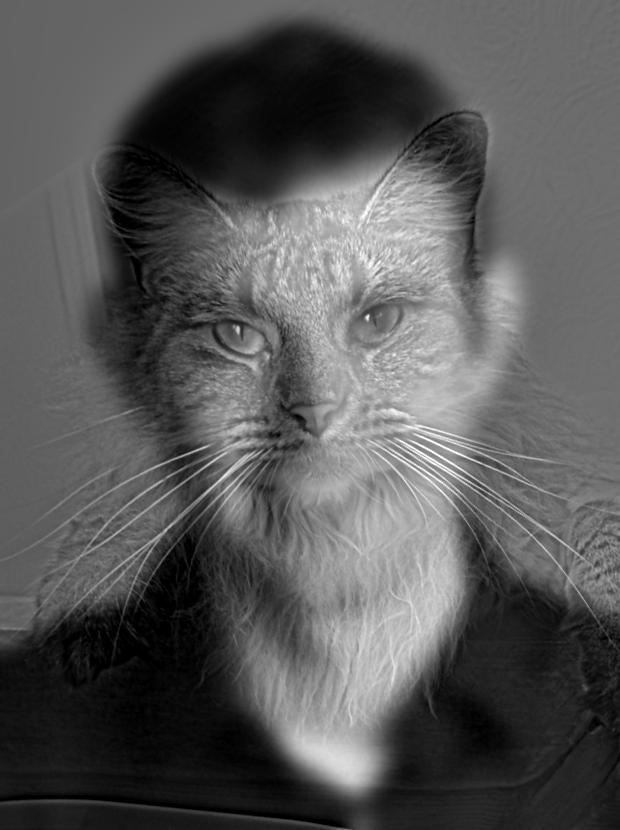
Aligned by the eyes. Derek is the low-frequency image (σlow = 10) and Nutmeg the high-frequency one (σhigh = 5).
derek · low frequenciesnutmeg · high frequencieshybrid
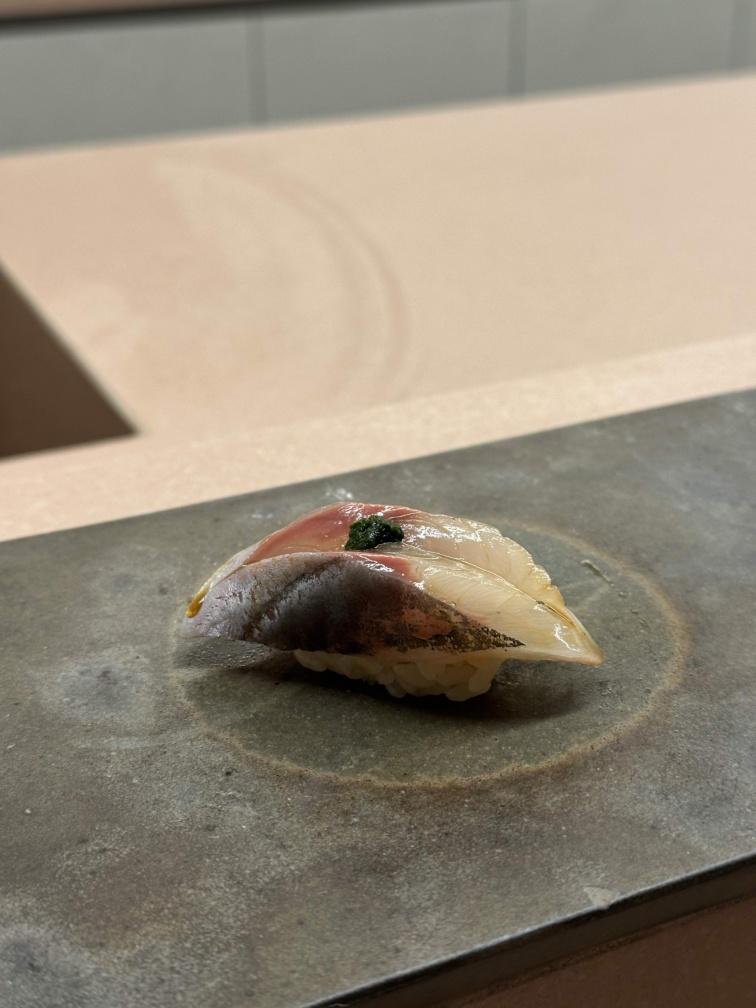
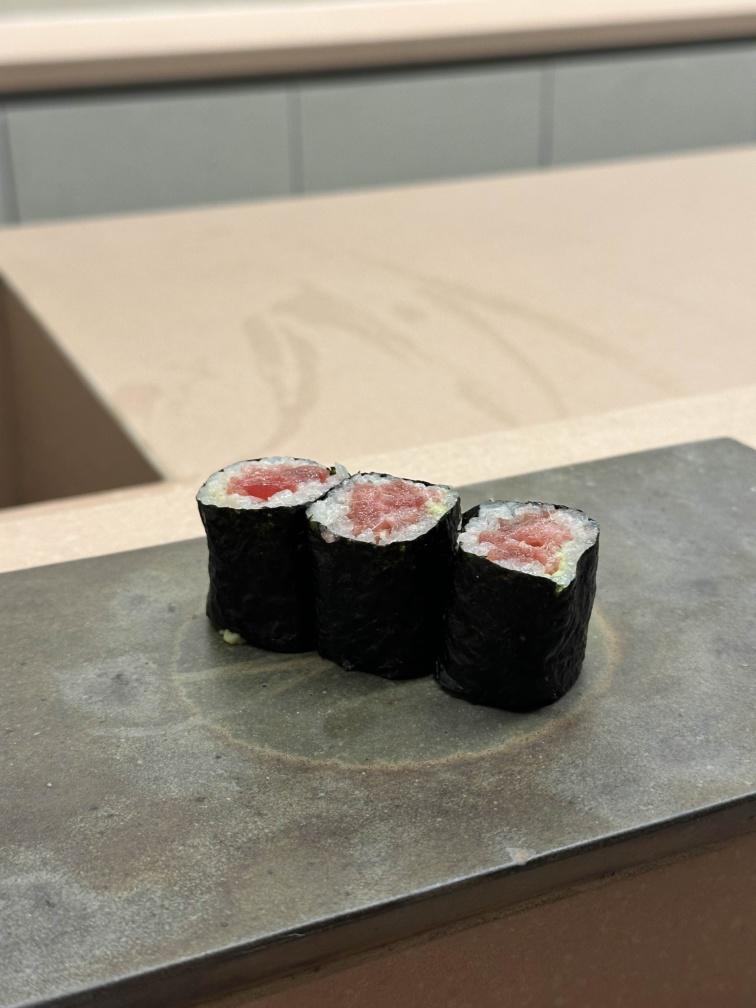
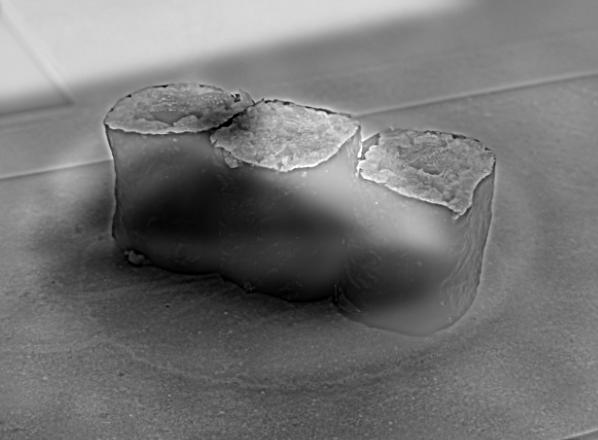
aji and tuna rolls
Aligned by the left and right ends of the pieces. The aji nigiri is the low-frequency image (σlow = 8) and the tuna rolls the high-frequency one (σhigh = 3).
aji · low frequenciestuna rolls · high frequencieshybrid
06
gaussian and laplacian stacks
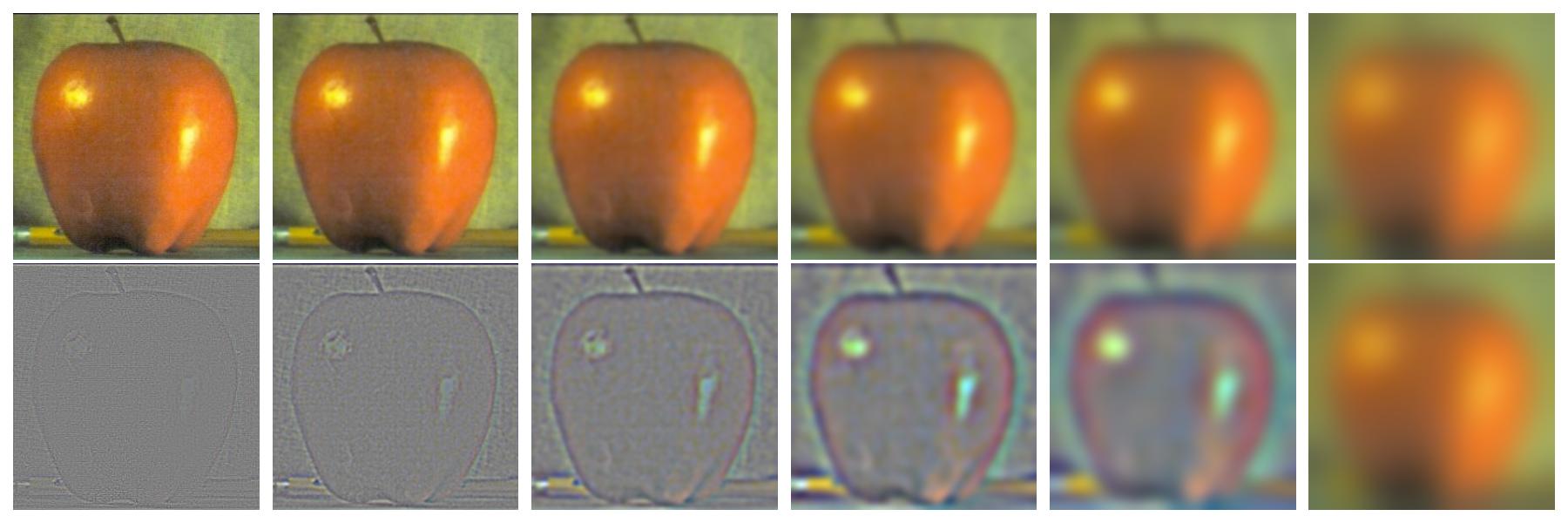
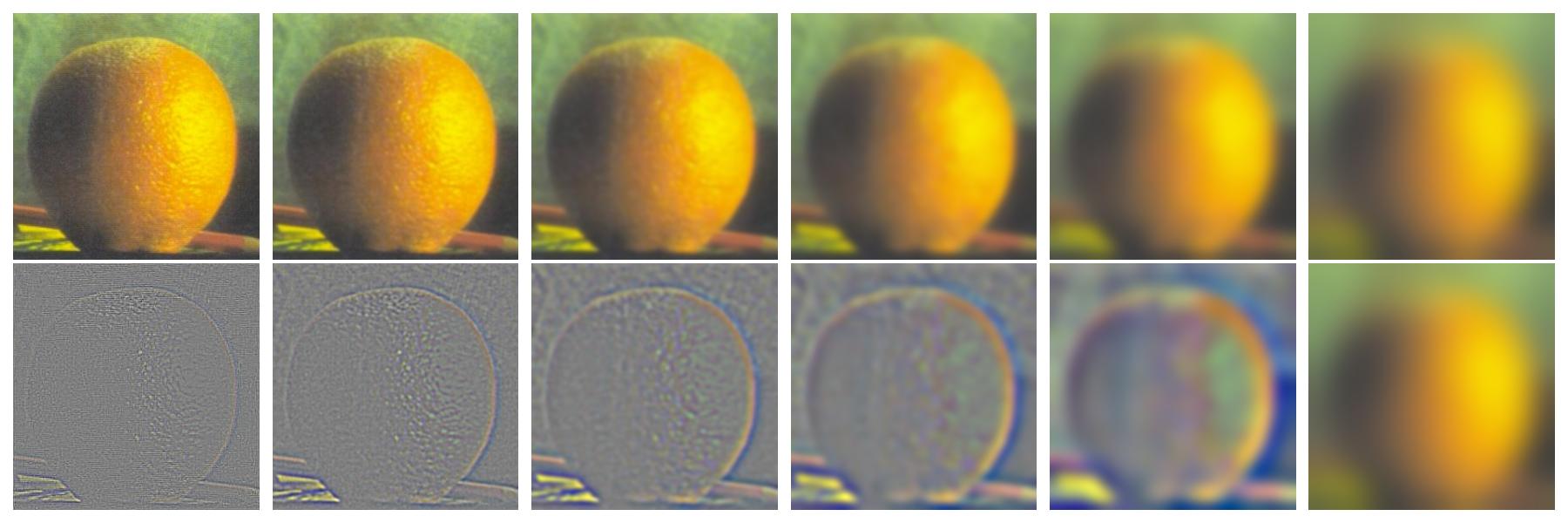
A Gaussian stack is the same as its pyramid counterpart without the downsampling. Every level is the previous level blurred again, at full resolution. Since a pyramid halves the resolution at each level, we double σ at every level instead to get the same effect.
G0 = f
Gi+1 = Gi ∗ Gaussian(σ = 2i), i = 0, …, 4
For the Laplacian stack, each level is the band of frequencies lost between two neighboring Gaussian levels, and the last level is the most blurred Gaussian level itself, so the whole Laplacian stack adds back up to the original image. Since Laplacian levels are signed, zero values are shown as mid-gray.
Li = Gi − Gi+1, i = 0, …, 4
L5 = G5
f = L0 + L1 + … + L5
apple · top: gaussian levels 0–5 · bottom: laplacian levels 0–4 and the last gaussian level
orange · same layout
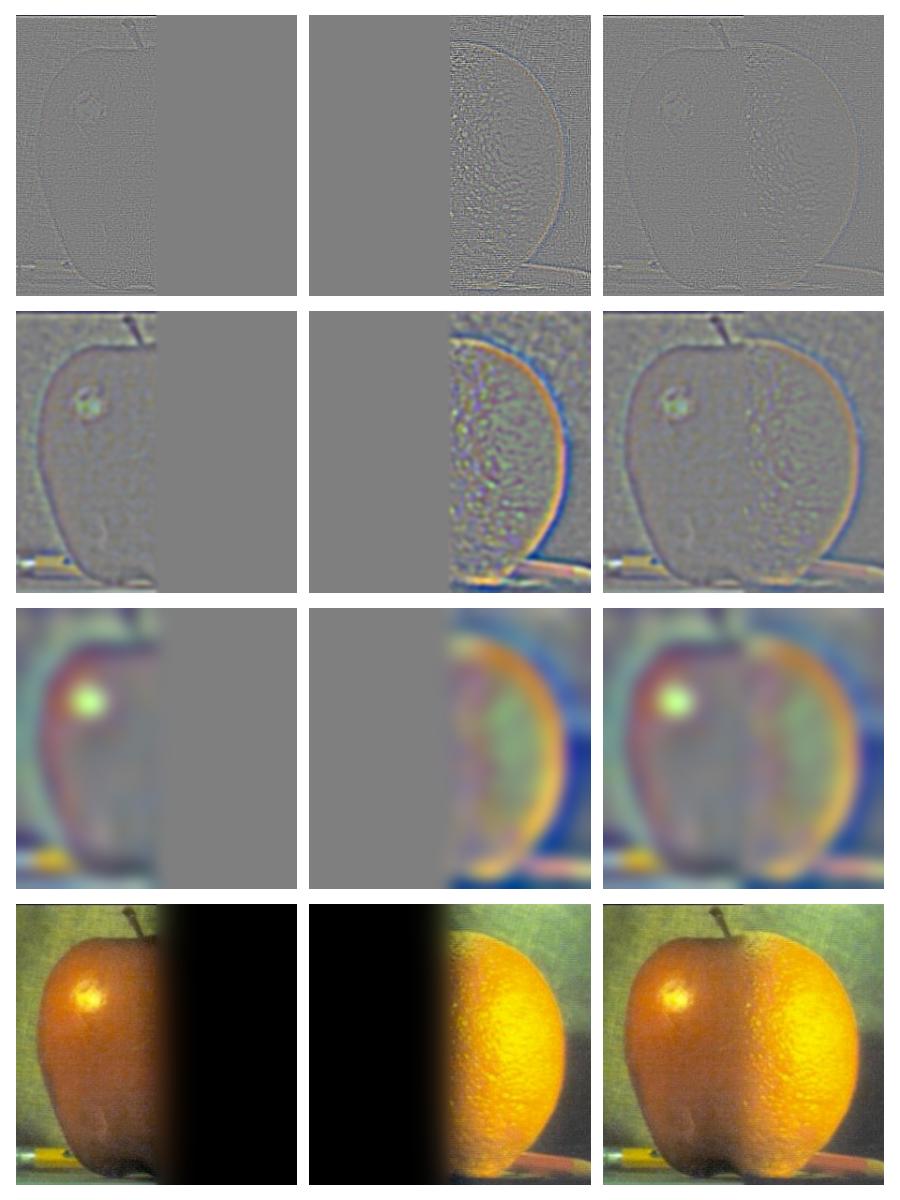
recreating szeliski figure 3.42
(a)–(l) · rows: laplacian levels 0, 2, 4 and the sum of all levels · columns: apple, orange, blend
07
multiresolution blending
At every level, we blend the two Laplacian levels using the matching level of the mask’s Gaussian stack as the weight, and then add the levels up:
We blend fine details across a narrow seam and broader colors across a wider one for better blending. This gets rid of any visible edges and ghosting. Since we are dealing with color images, we blend one channel at a time and then recombine them.
the oraple
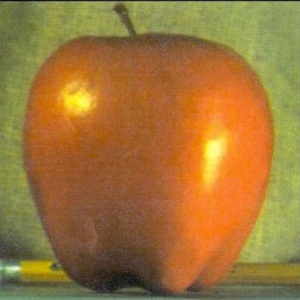
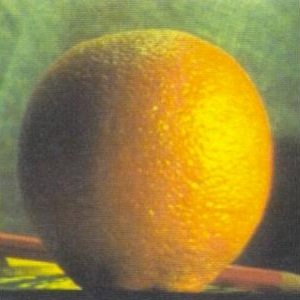
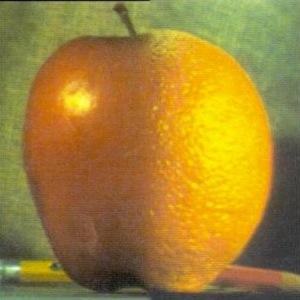
appleorangeoraple · vertical step · 5 levels
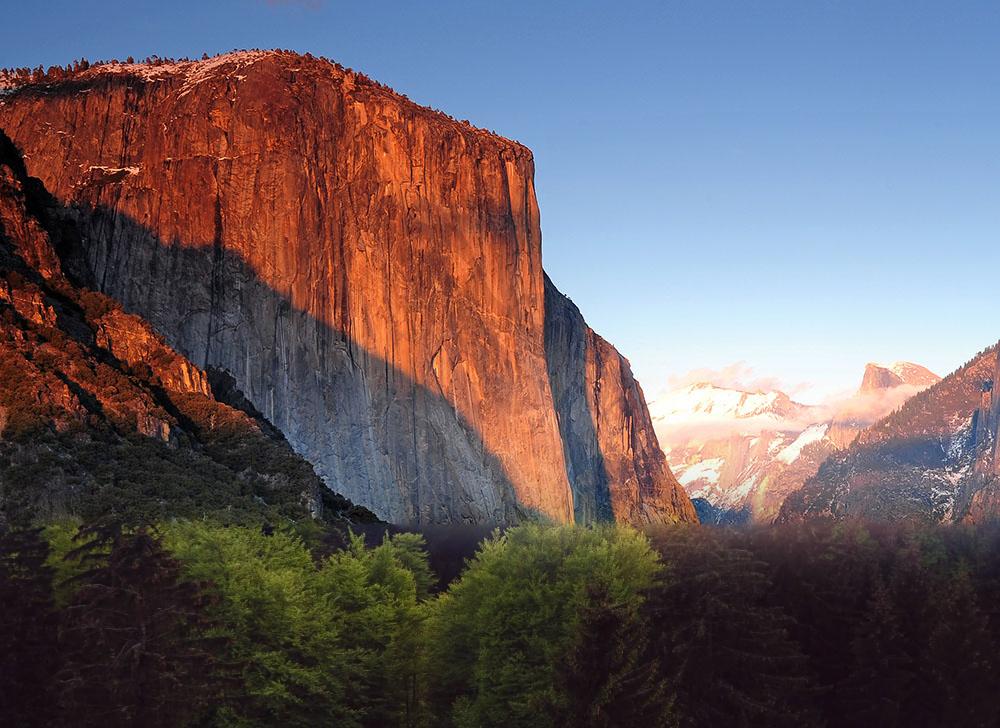
a mountain on a forest
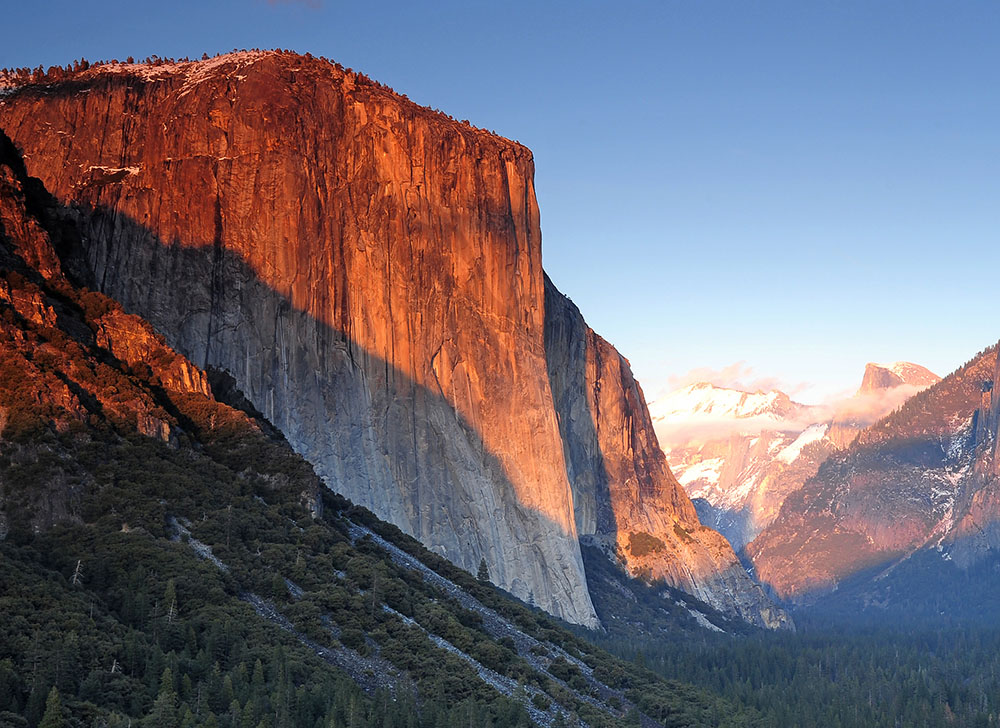
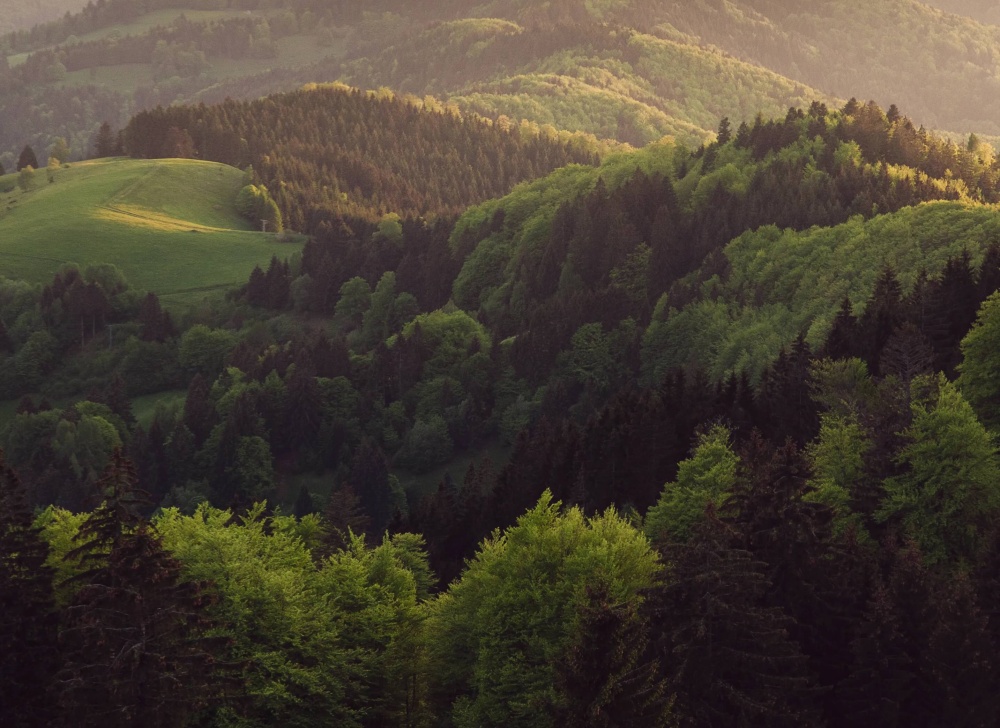
El Capitan on top of a forest, joined with a horizontal step just below the base of the cliff.
top · el capitanbottom · forest
mask · horizontal step at 72%blend · 6 levels
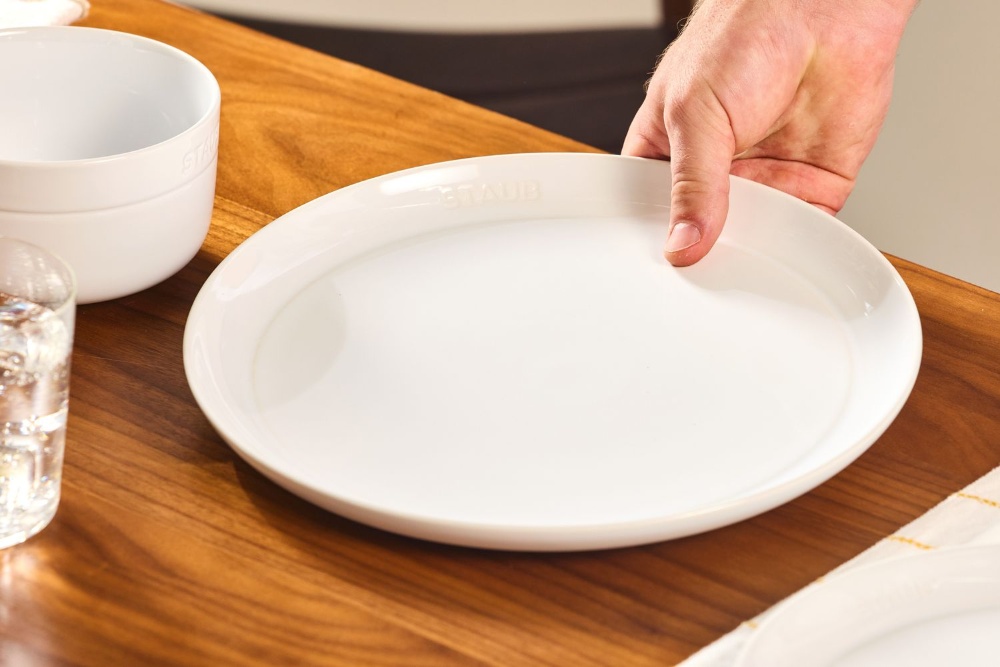
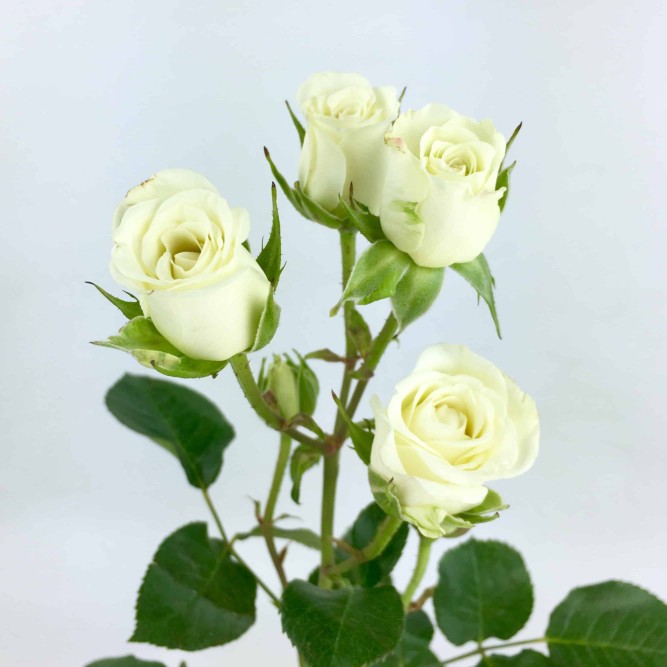
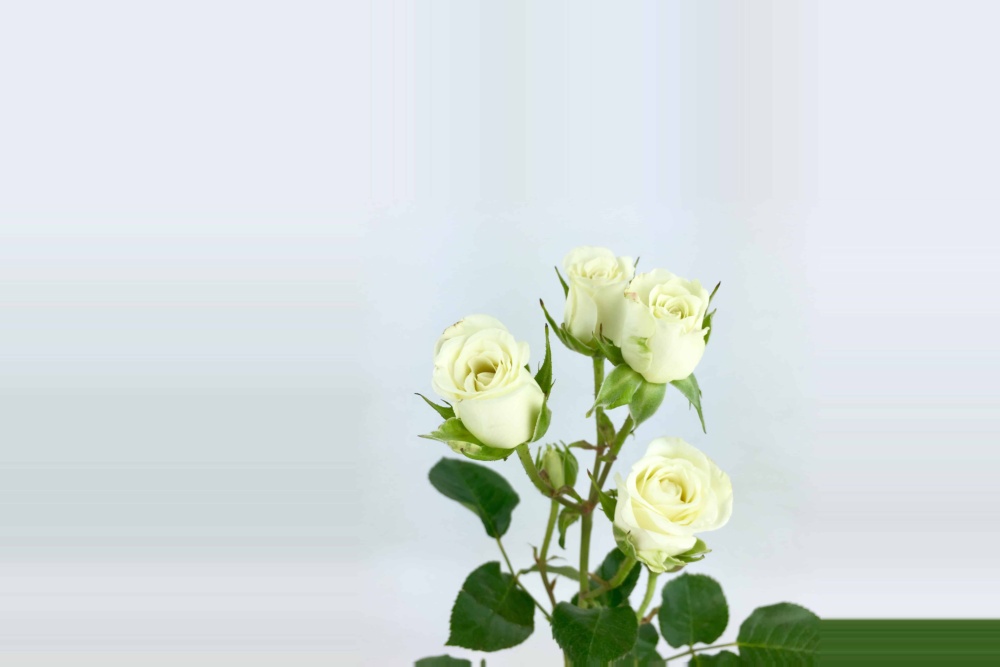
roses served on a plate
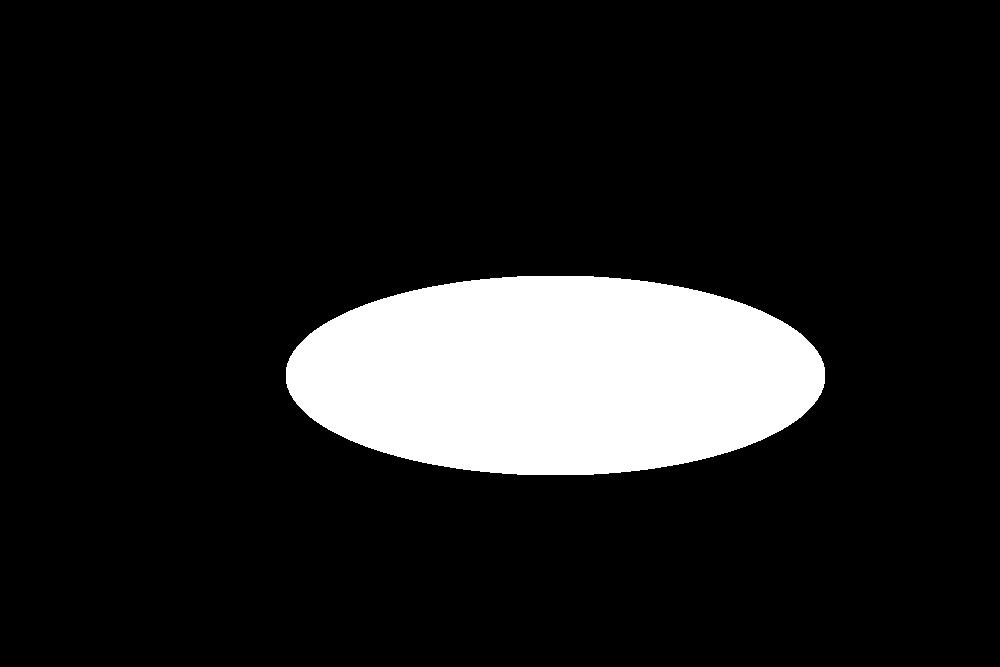
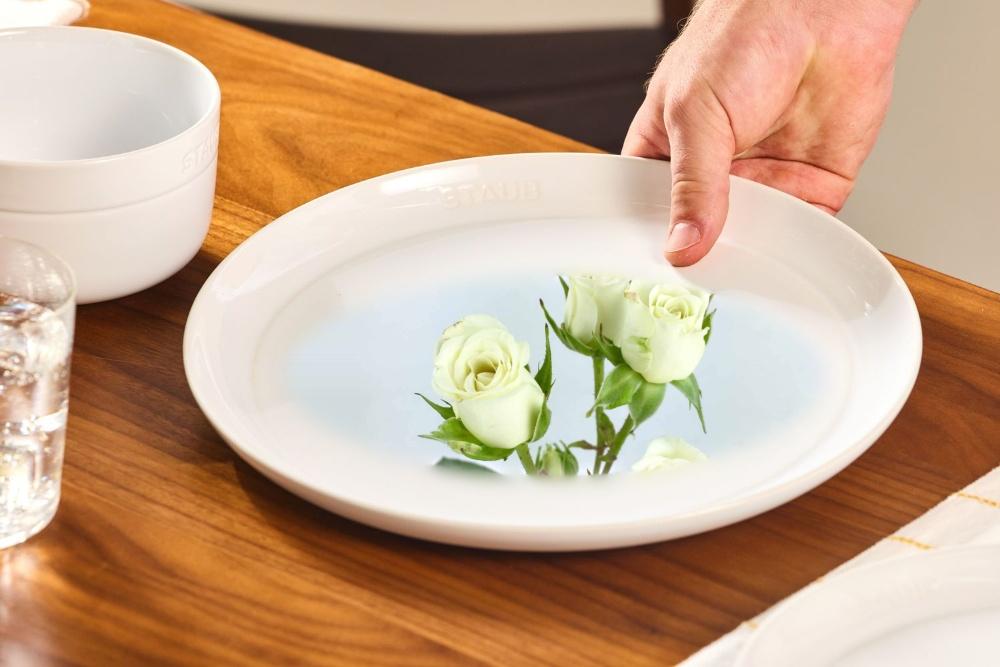
An elliptical mask cuts a hole in the center of the plate, and the roses fill it.
plateroses · originalroses · scaled and placed
mask · ellipseblend · 4 levels
the process, figure 10 style
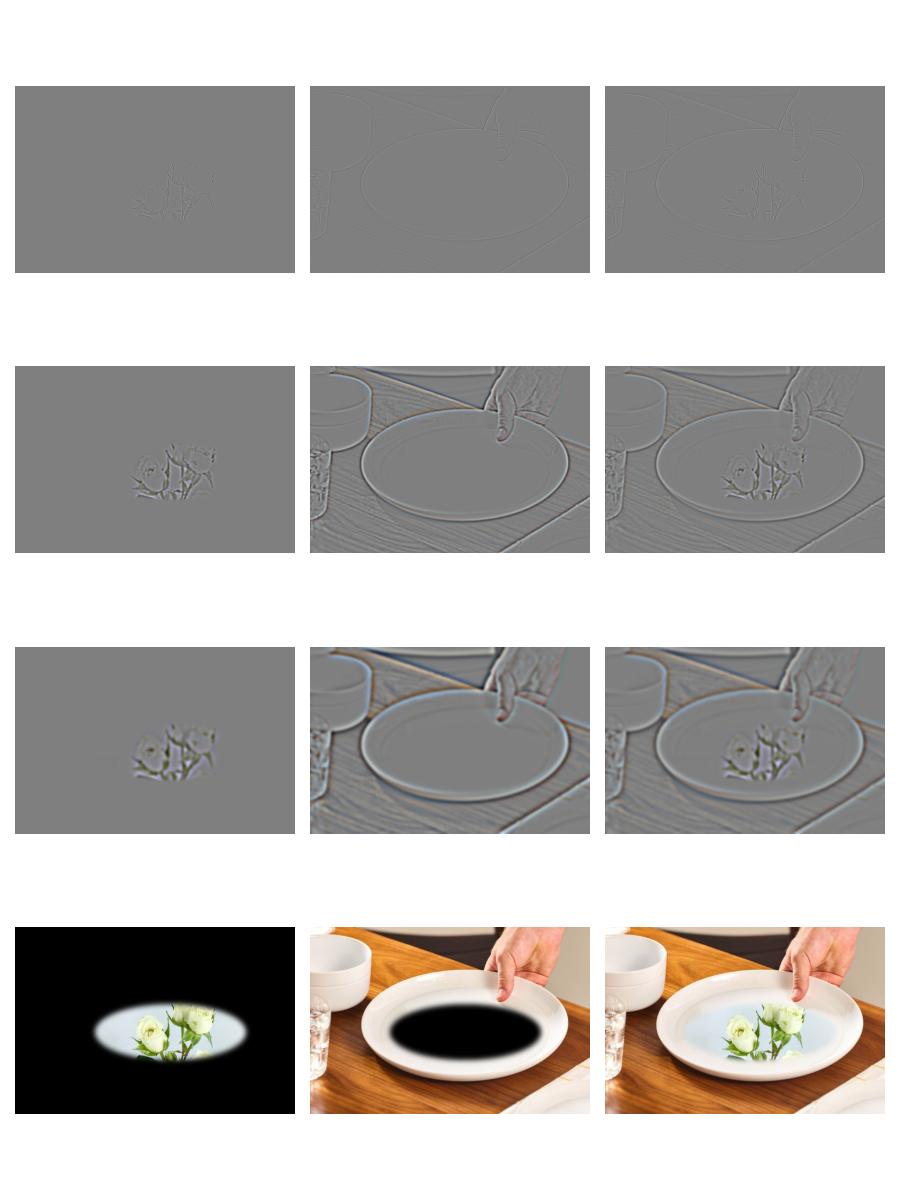
This is our favorite result, so we broke it down the same way as the oraple. Each row is a Laplacian level (0, 2 and 3), with the roses weighted by the mask on the left, the plate weighted by one minus the mask in the middle, and their sum on the right. Since we only used four levels here, level 3 is the coarsest band. The bottom row shows the masked inputs and the final blend.
rows: laplacian levels 0, 2, 3 and the sum of all levels · columns: roses, plate, blend
08
the most important thing we learned
Almost everything in this project turned out to be the same operation: split the image into frequency bands with Gaussians, then decide what to do with each band. Boost the high band and get a sharpened image. Mix the high band of one image and the low band of another image and you make a hybrid. Blend every band with its own seam width and get multiresolution blending. Everything is controlled by the Gaussian’s σ and alignment (which we saw was already important from project 1). Once we see it this way, the parameters become much easier to reason about. Simply align the images the way you want them, and tune σ to control the split between high and low frequencies.